Menu
This guide explains how to create and send an estimate in Clientility using milestone payments. Milestone payments allow contractors and service businesses to split a project total into scheduled payments, such as a deposit, payment before an event, payment after an event, and final balance.
This guide explains how to create and send an estimate in Clientility using milestone payments. Milestone payments allow contractors and service businesses to split a project total into scheduled payments, such as a deposit, payment before an event, payment after an event, and final balance.

.webp)
With Clientility, you can build an estimate, add services, create a payment schedule, connect payments to job events, and send the completed estimate to your customer through the Client Portal.
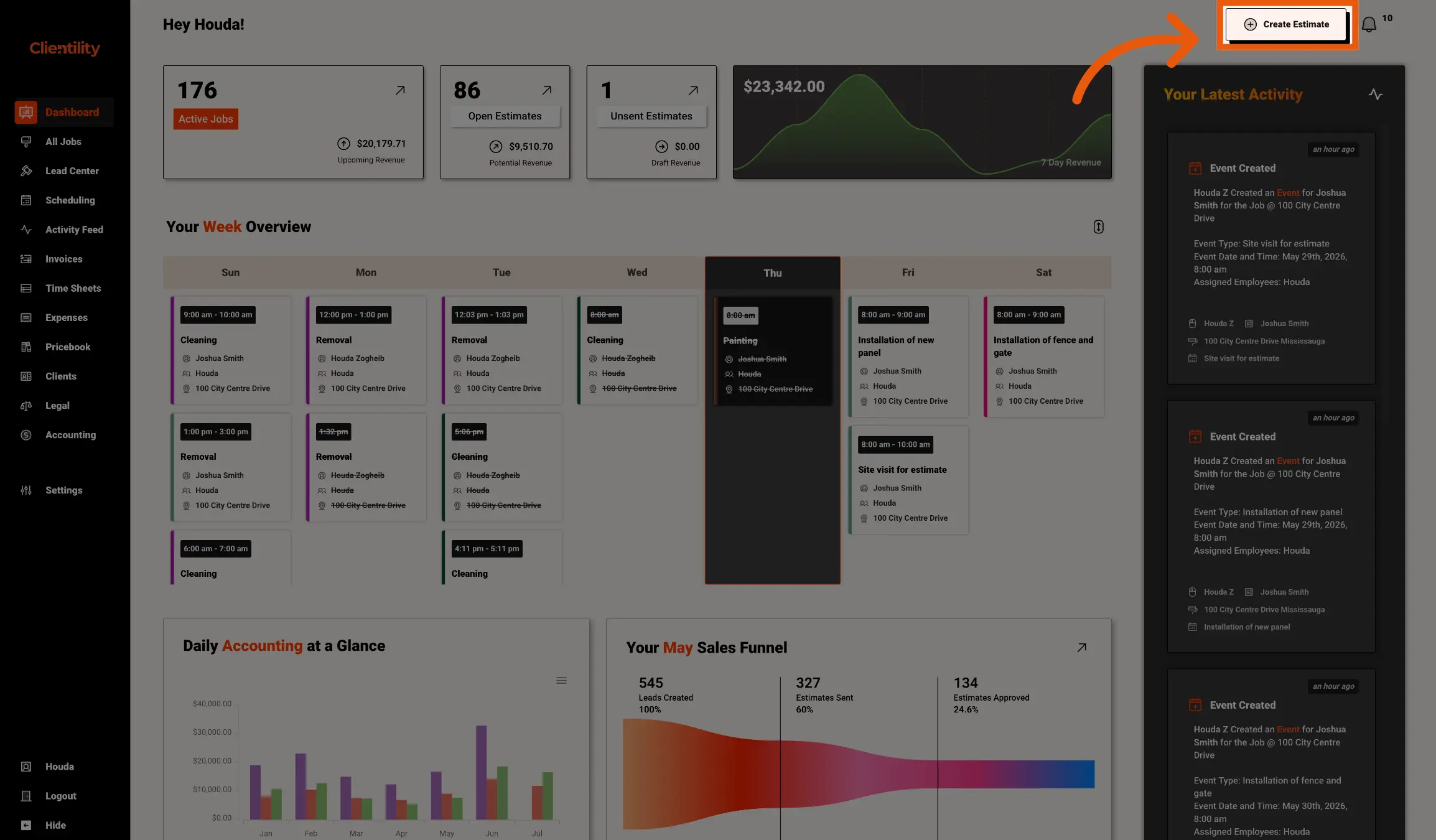
Click Create Estimate to begin building a new estimate. This opens the estimate creation workflow, where you can choose the estimate type, select a customer, add services/products, and set up milestone payments.

Select Single Estimate if you want to send one clear estimate price to the customer.
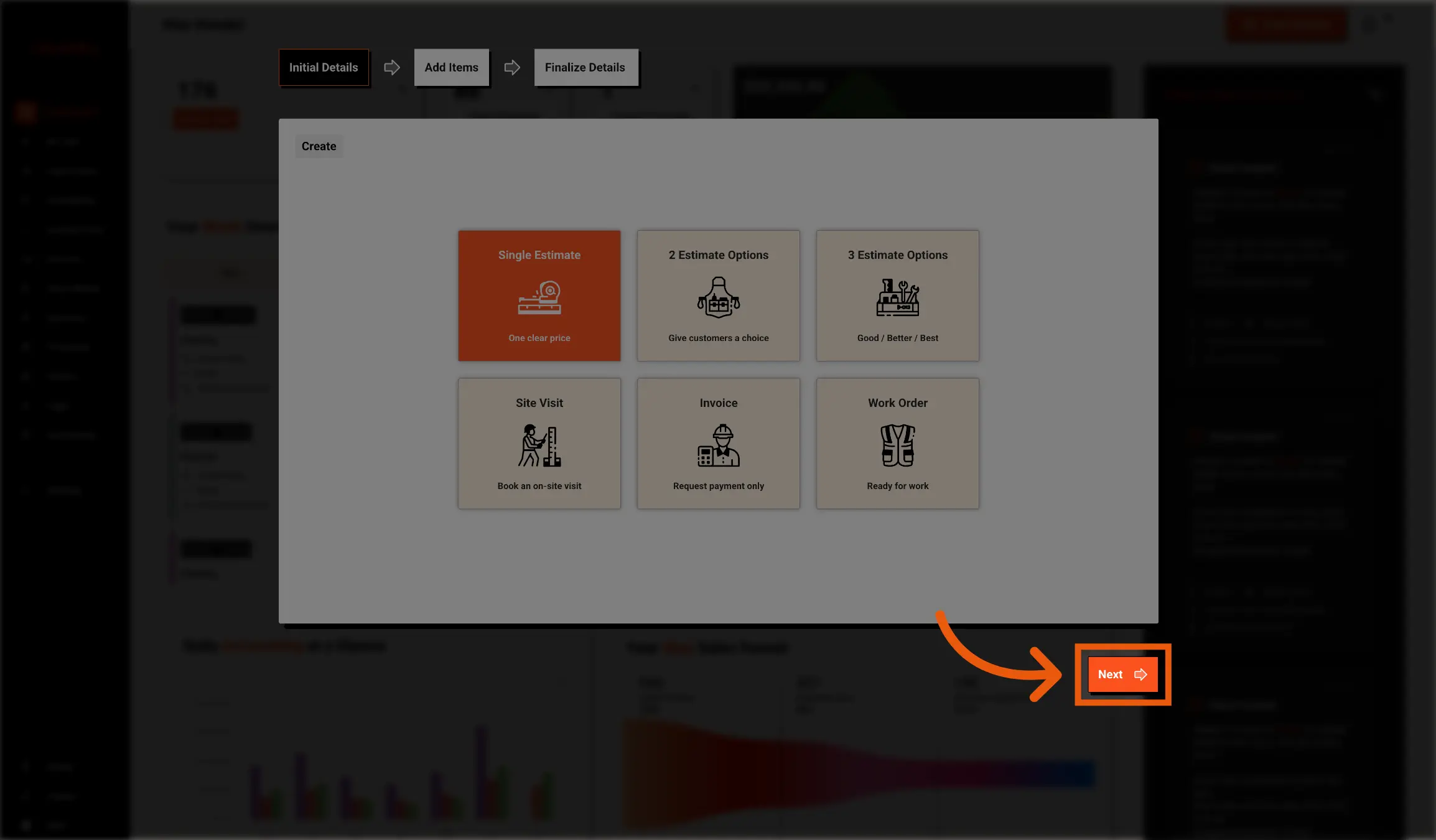
Click Next to move to the customer selection step. This is where you can connect the estimate to an existing customer or create a new customer record.

Use the customer selection step to choose who the estimate is for. You can click Search for Existing Customers to find a customer already saved, or you can add a new customer if they are not in your customer list yet.

Click Next to move to the service section of the estimate. This section is where you add your services or products.
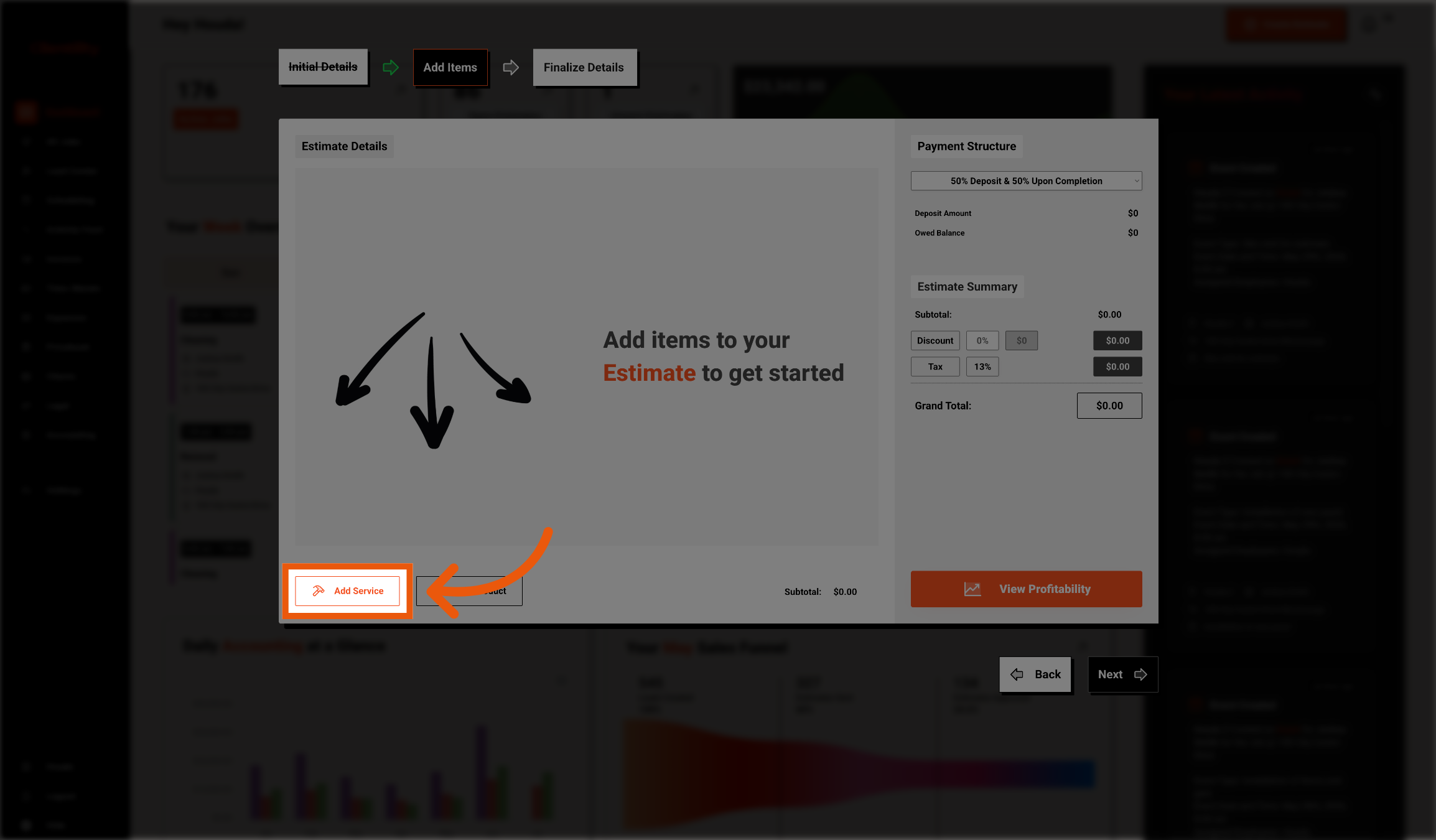
Click Add Service to include a service in the estimate. If you are adding a product as well, click Products.

Click Select an Existing Service to choose from your saved service list. Once done, click "Add Service."
Using existing services can help save time and make estimate creation faster.

Select Milestone Payments from the drop-down to create a new payment milestone for the estimate.

Click Add Milestone to start creating a milestone payment schedule.
Milestones let you split the total estimate amount into smaller payments that are due at different stages of the project.
For example, you may create payments for: