Menu
This guide explains how to set up Review Boost in Clientility. Review Boost helps you collect more Google reviews by sending review requests to customers after a job is completed, while giving unhappy customers a private way to share feedback before they are sent to Google.


Click Settings from the main sidebar to access your account configuration options.
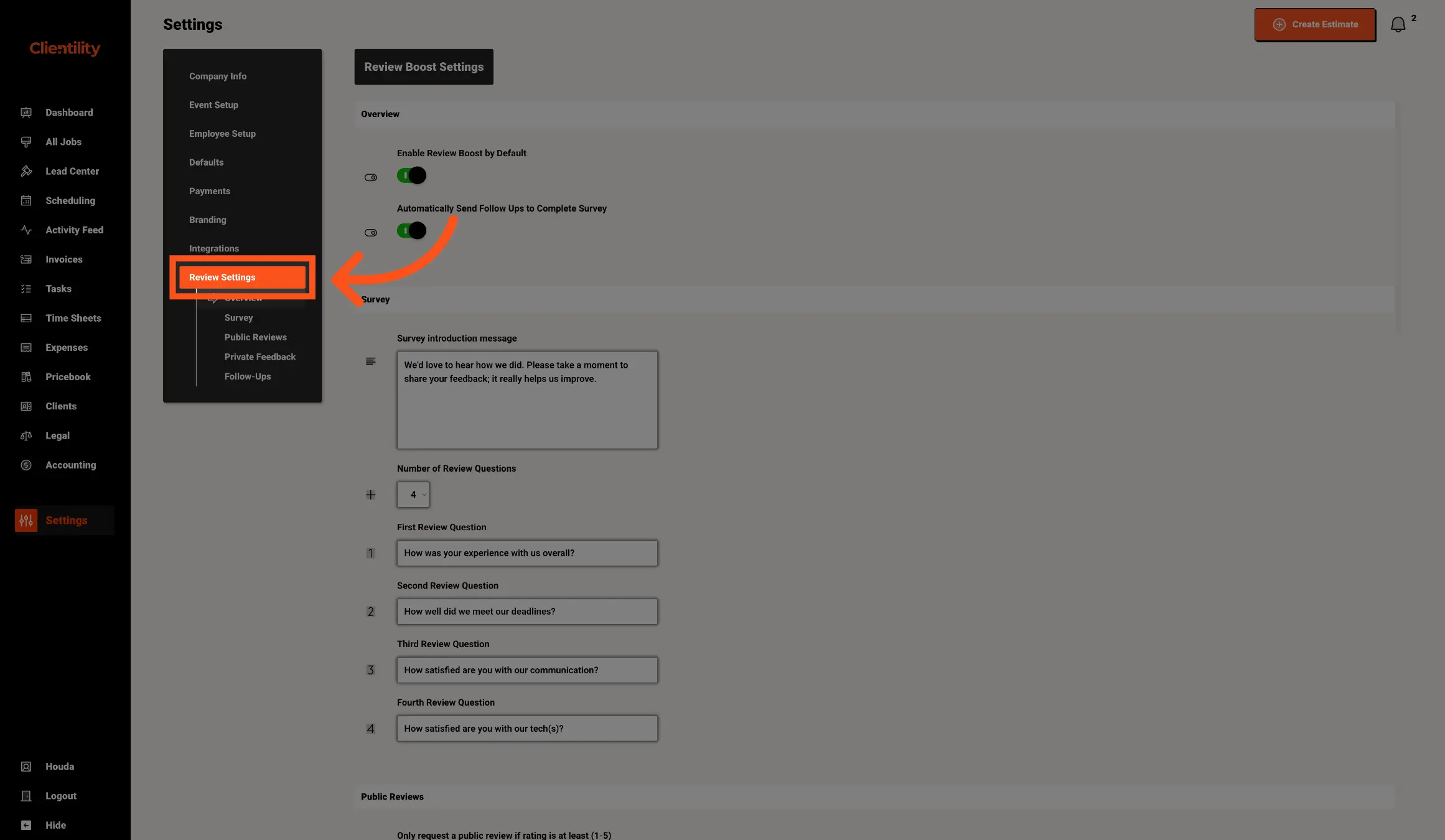
Click Review Settings from the Settings menu.
This is where you can manage how Review Boost works in Clientility.
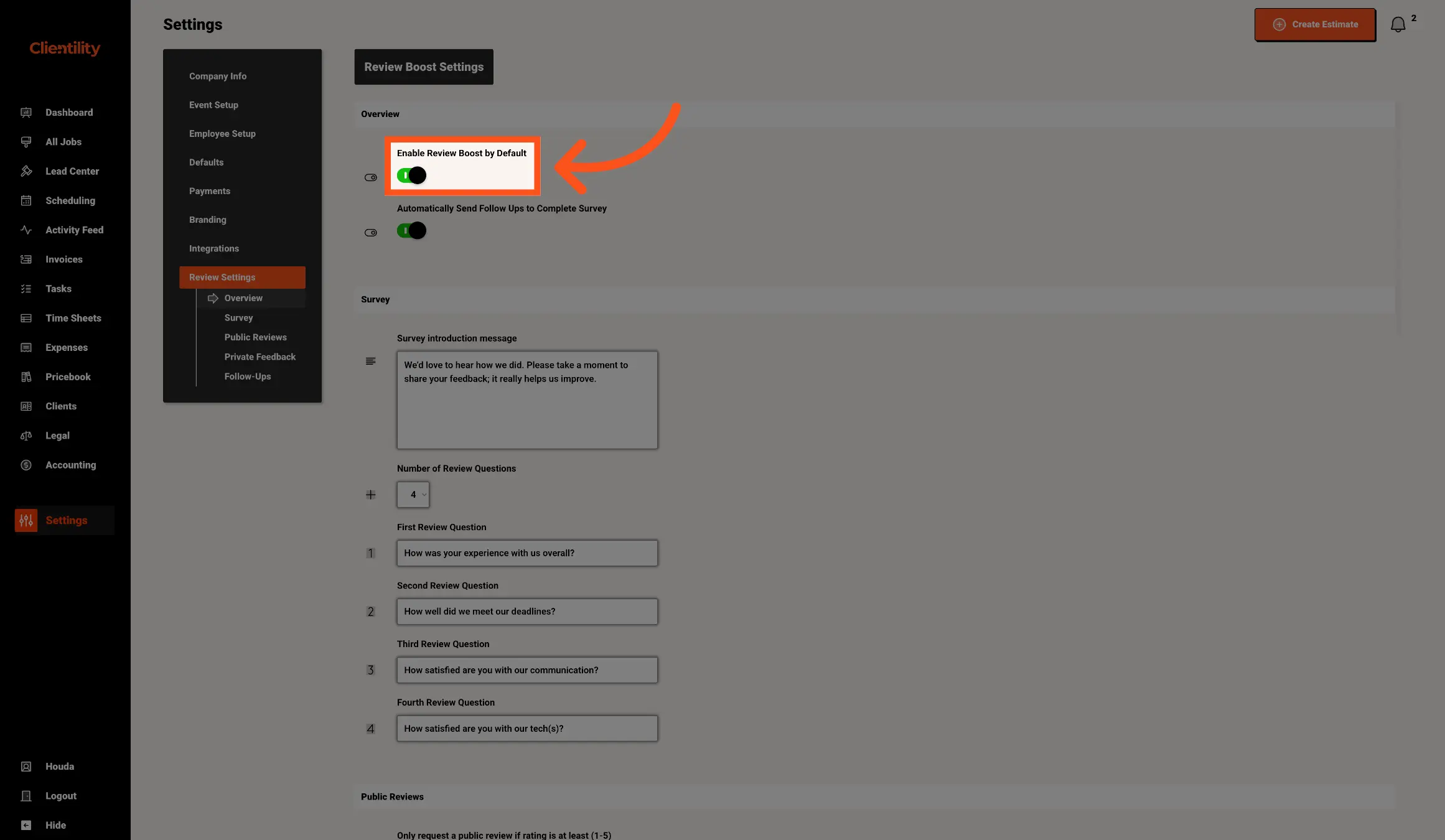
Turn on Enable Review Boost by Default if you want Review Boost to automatically be enabled for new jobs.
When this is turned on, Clientility will use your Review Boost settings by default, so customers can be asked for feedback after the job is completed.
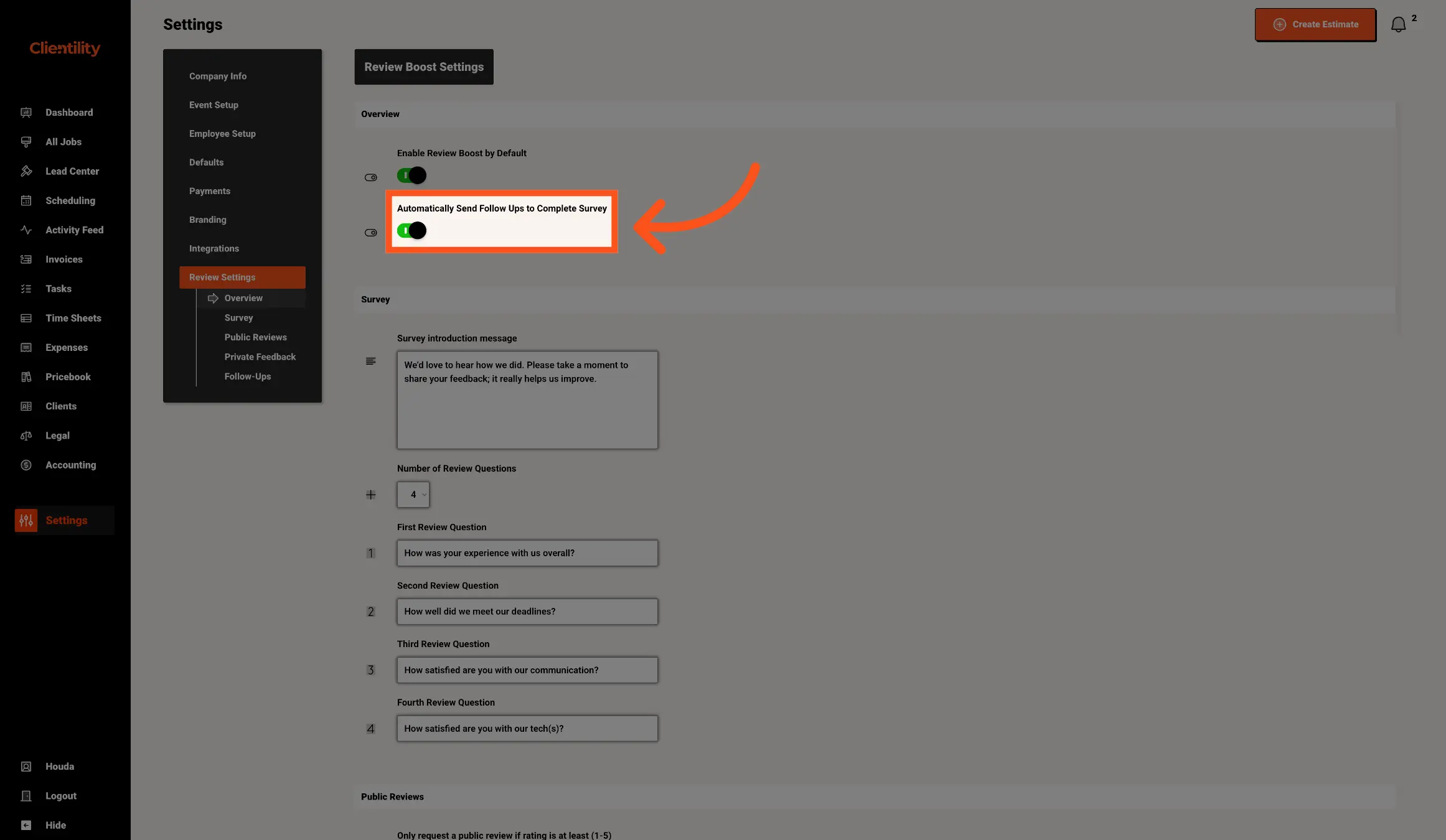
Turn on Automatically Send Follow Ups to Complete Survey if you want Clientility to remind customers to complete the Review Boost survey.
When this is enabled, customers who have not completed the survey can receive follow-up reminders, helping you get more feedback and more chances to collect public reviews.
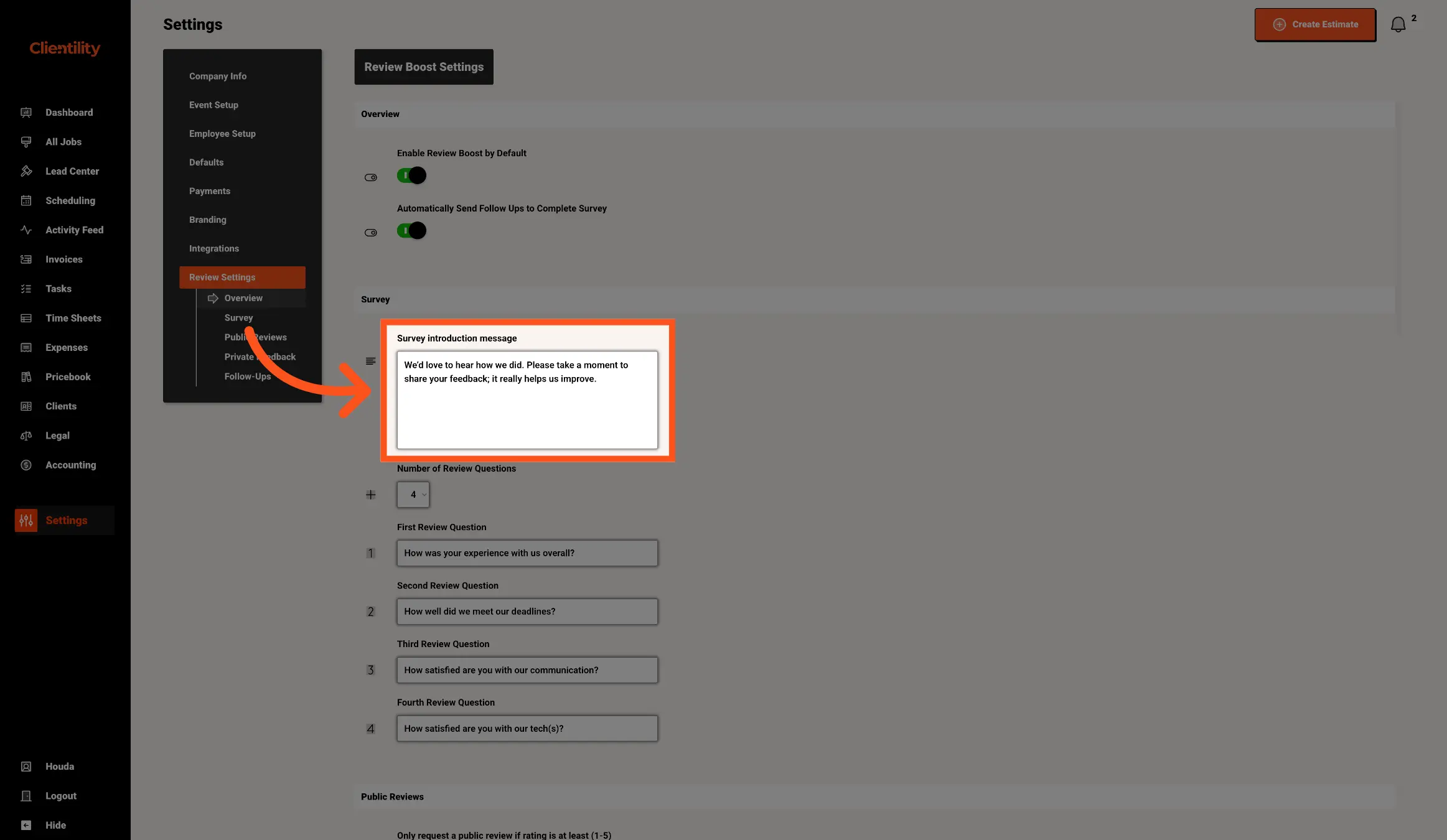
Enter your Survey Introduction Message.
This is the message customers will see when answering your Review Boost survey. Use this space to thank them for choosing your business and let them know their feedback helps you improve.
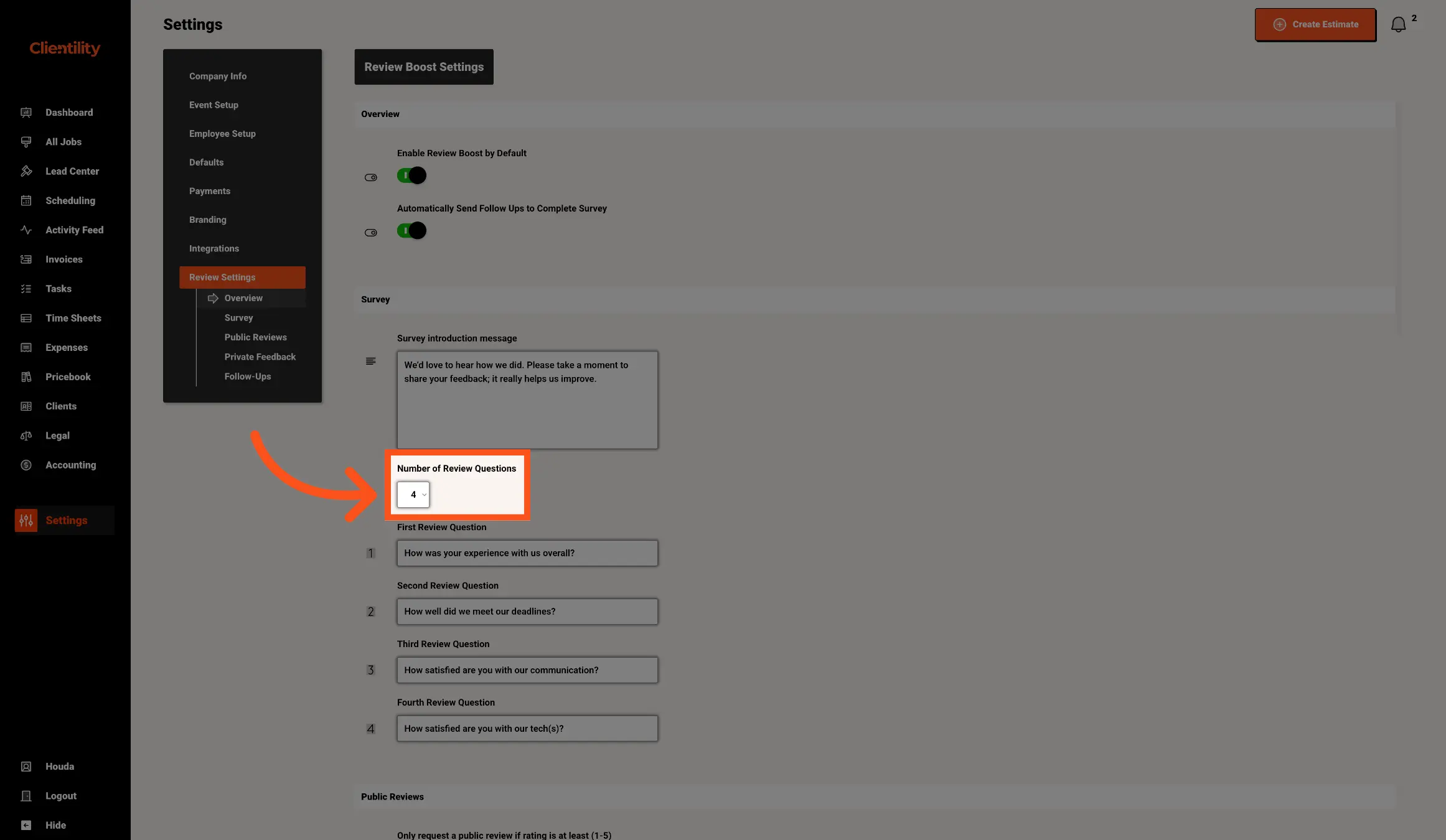
Choose how many questions you want customers to answer in the Review Boost survey.
This controls the number of review questions shown to the customer. These questions are customizable and act as the first step before showing the customer your Google review link. If the customer’s answers meet the public review rating threshold you set, Clientility can then show them the Google review link so they can leave a public review.
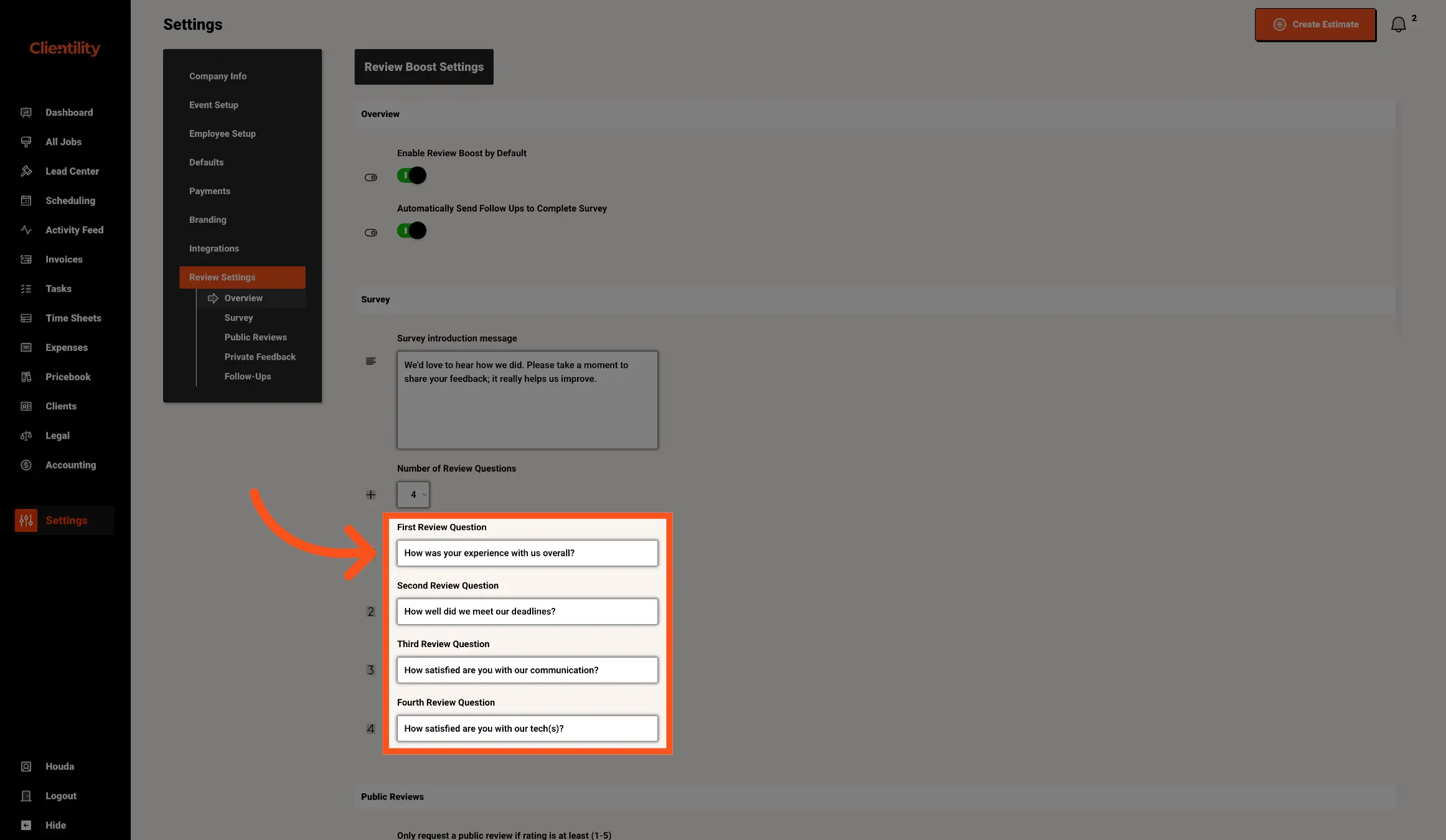
Edit each review question to control what customers are asked in the Review Boost survey.
This is where you can customize the exact wording of the questions. You can ask about the overall experience, communication, deadlines, quality of work, or anything else that helps you understand how the job went.
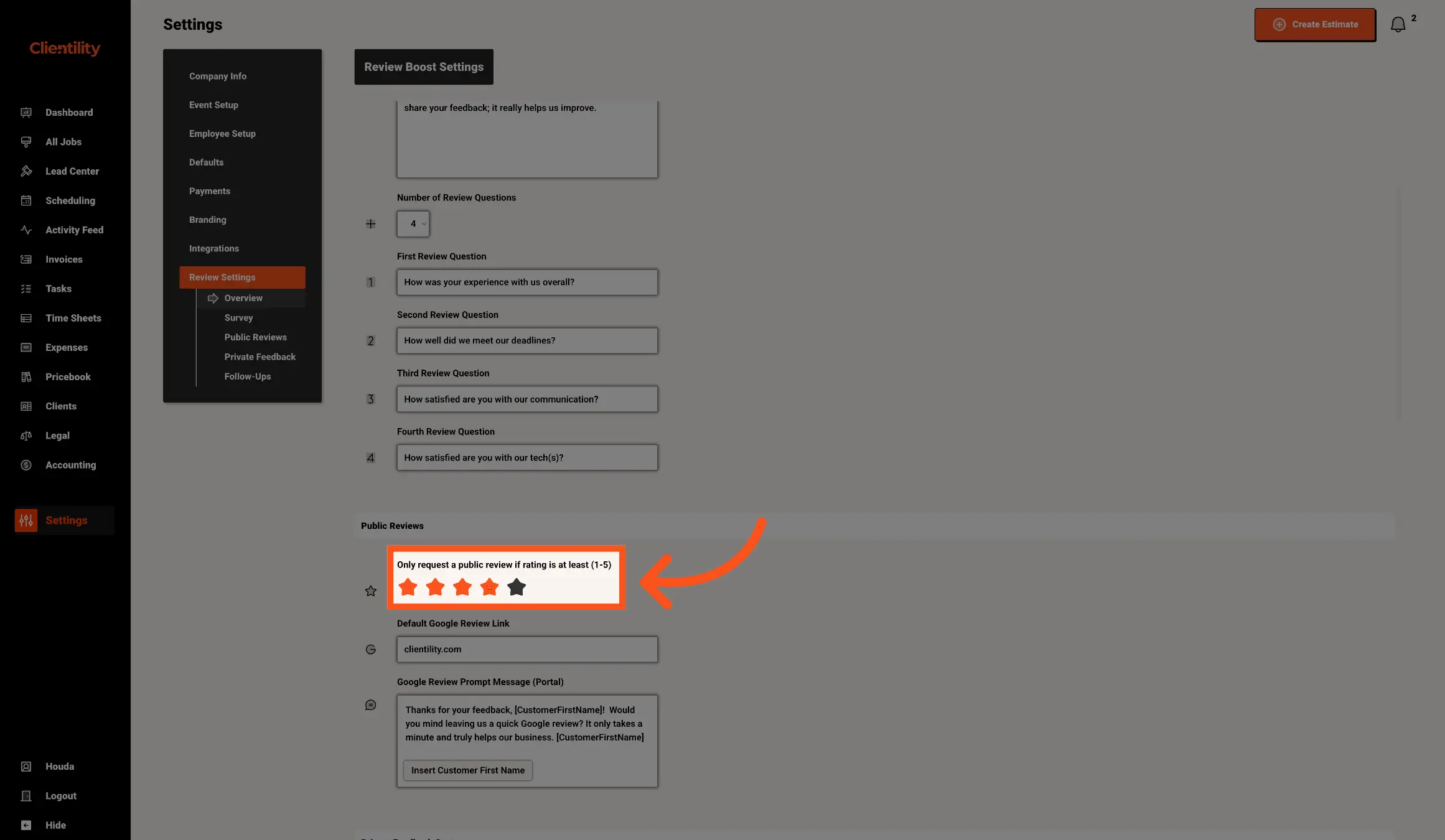
Choose the minimum average star rating a customer must give before they are shown your Google review link.
This threshold helps control when customers are asked to leave a public review. For example, if you set the threshold to 4 stars, the customer’s overall average rating must be 4 stars or higher before the Google review link is shown. If their average rating is below the threshold, they can be directed to private feedback if private feedback is enabled.
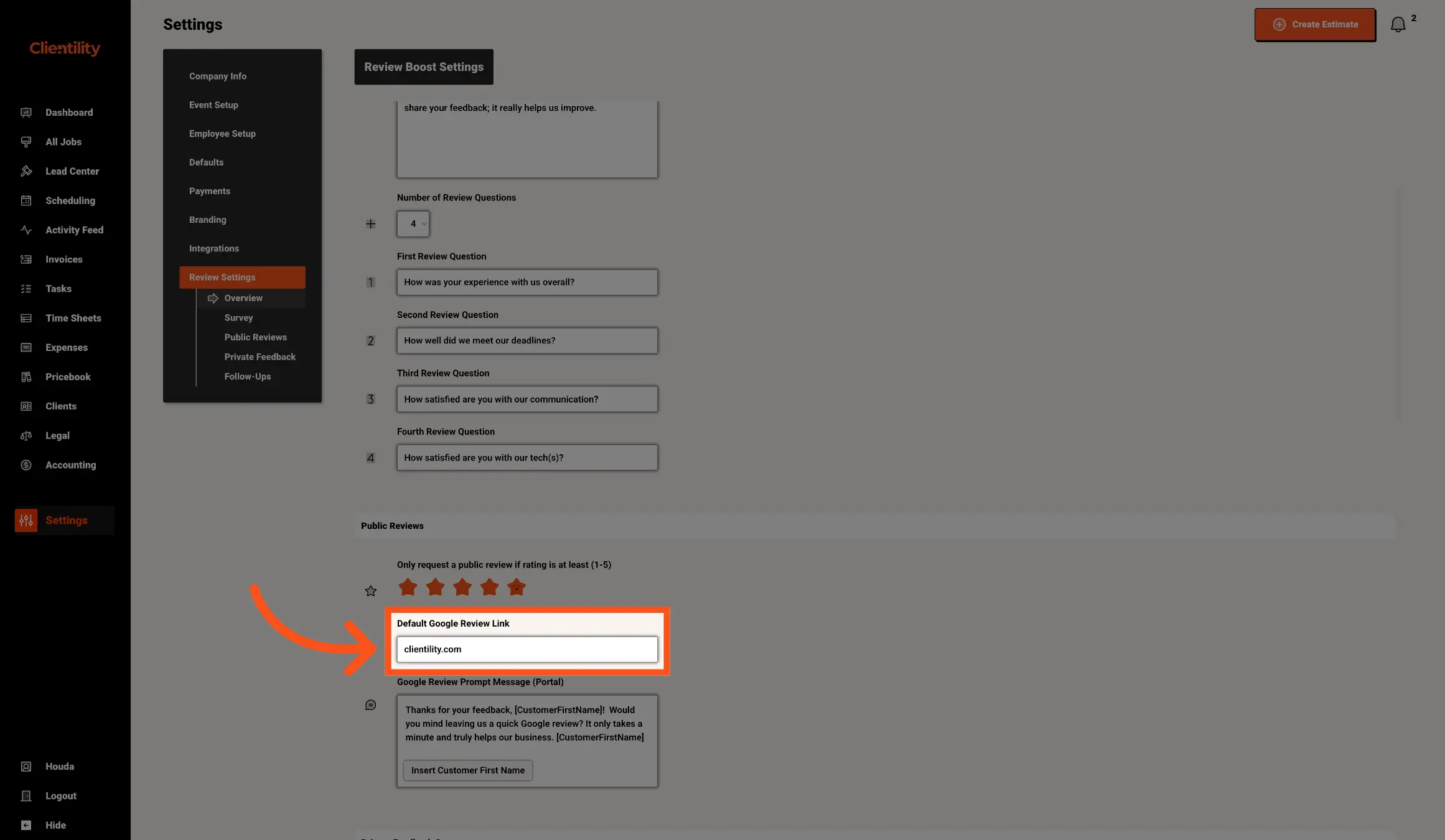
Enter the Google review link you want customers to visit when they qualify for a public review.
This is the link customers will see after their survey rating meets your public review threshold. Make sure this link sends customers directly to the page where they can leave a Google review for your business.
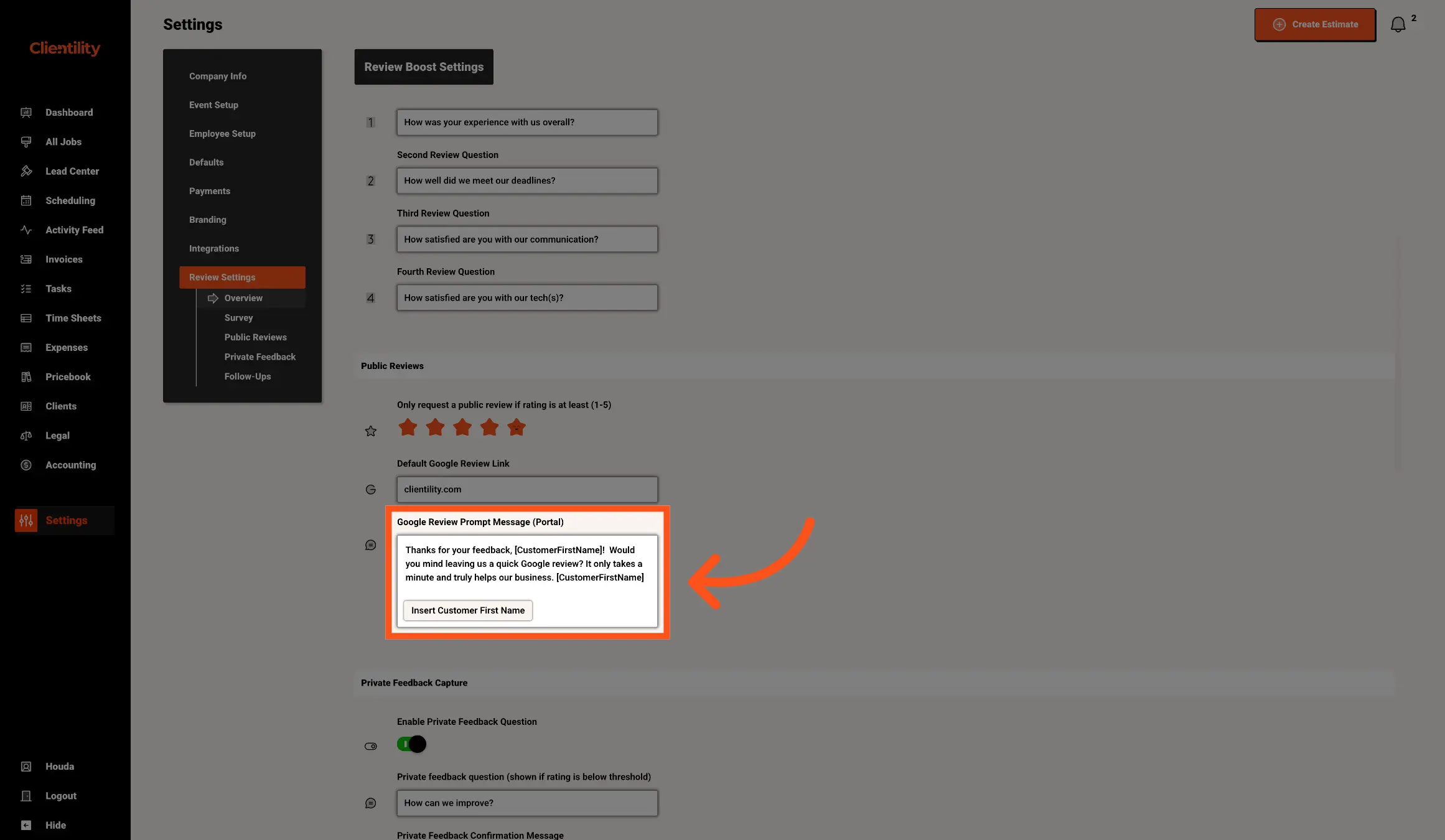
Edit the Google Review Prompt Message customers will see in the customer portal when they qualify for a public Google review.
This message should thank the customer for their feedback and ask them to leave a quick Google review. You can also use dynamic fields, such as the customer’s first name, to automatically personalize the message for each customer.
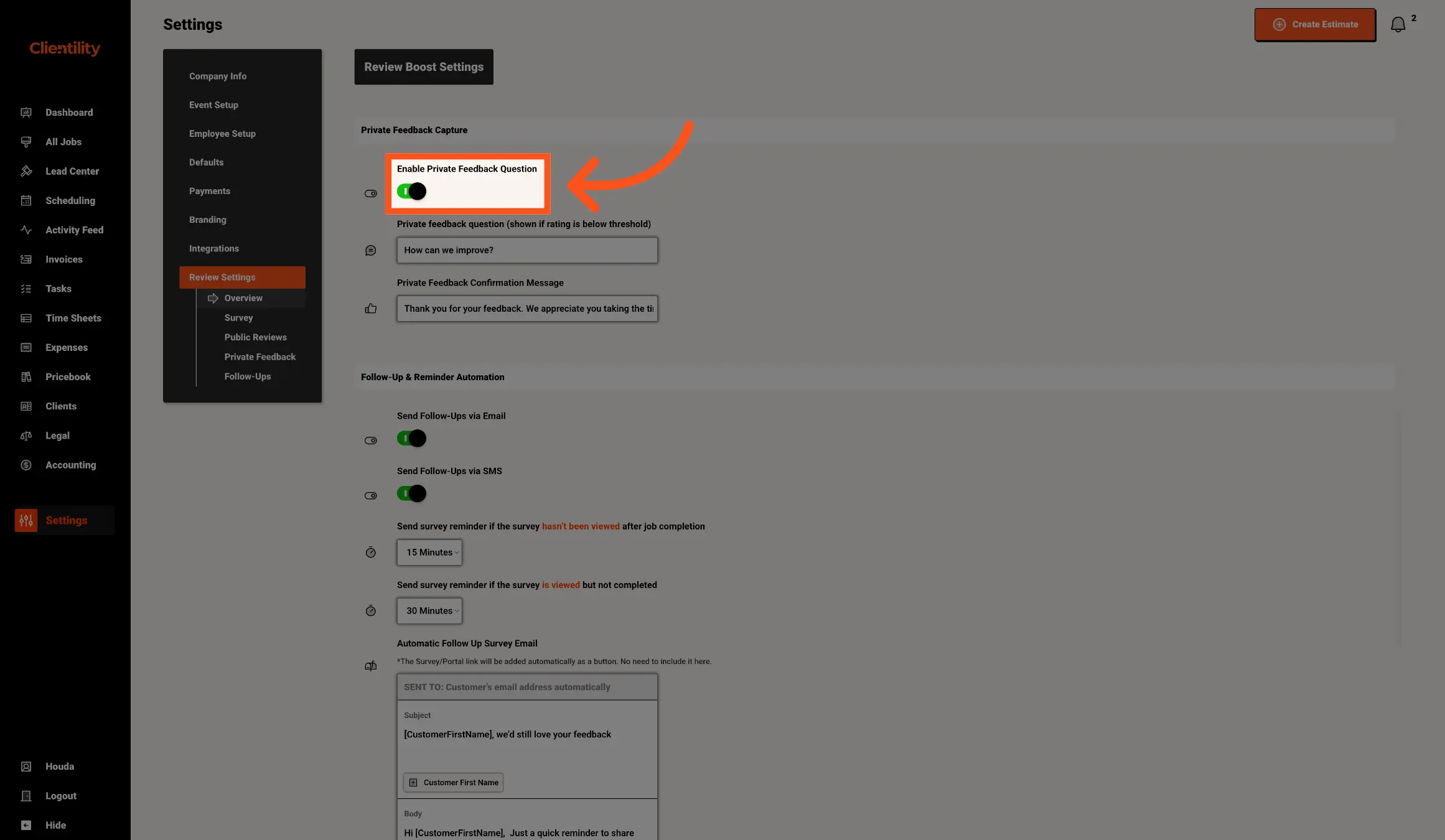
Turn on Enable Private Feedback Question if you want customers to share private feedback when their rating does not meet your public review threshold.
When this is enabled, customers who leave a lower average rating can be asked what your business could improve instead of being shown the Google review link. This gives you a chance to collect helpful feedback privately inside Clientility.
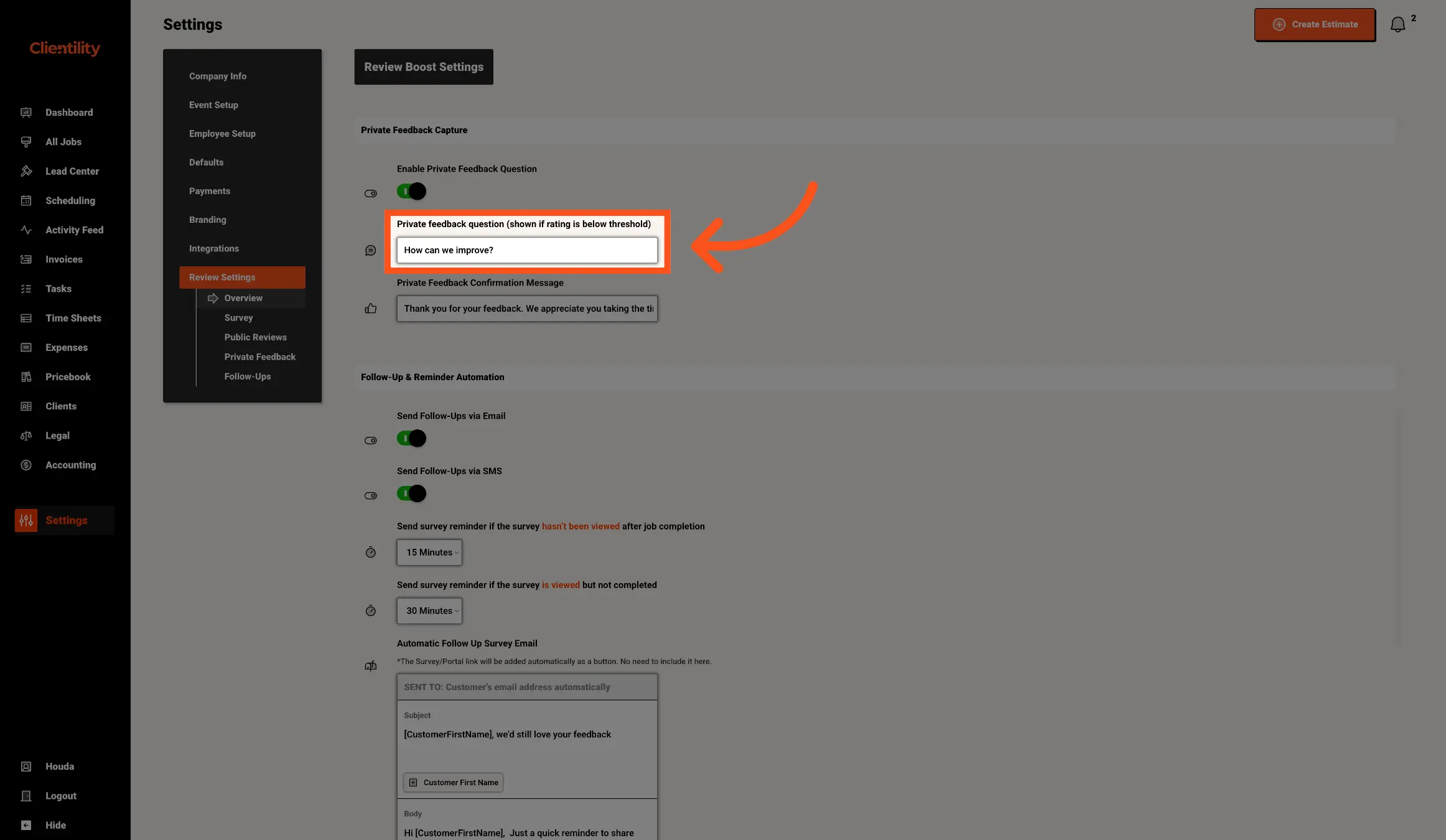
Edit the Private Feedback Question customers will see when their average rating is below your public review threshold.
This question is only shown when private feedback is enabled. Use it to ask customers what could have gone better so you can understand their concerns.
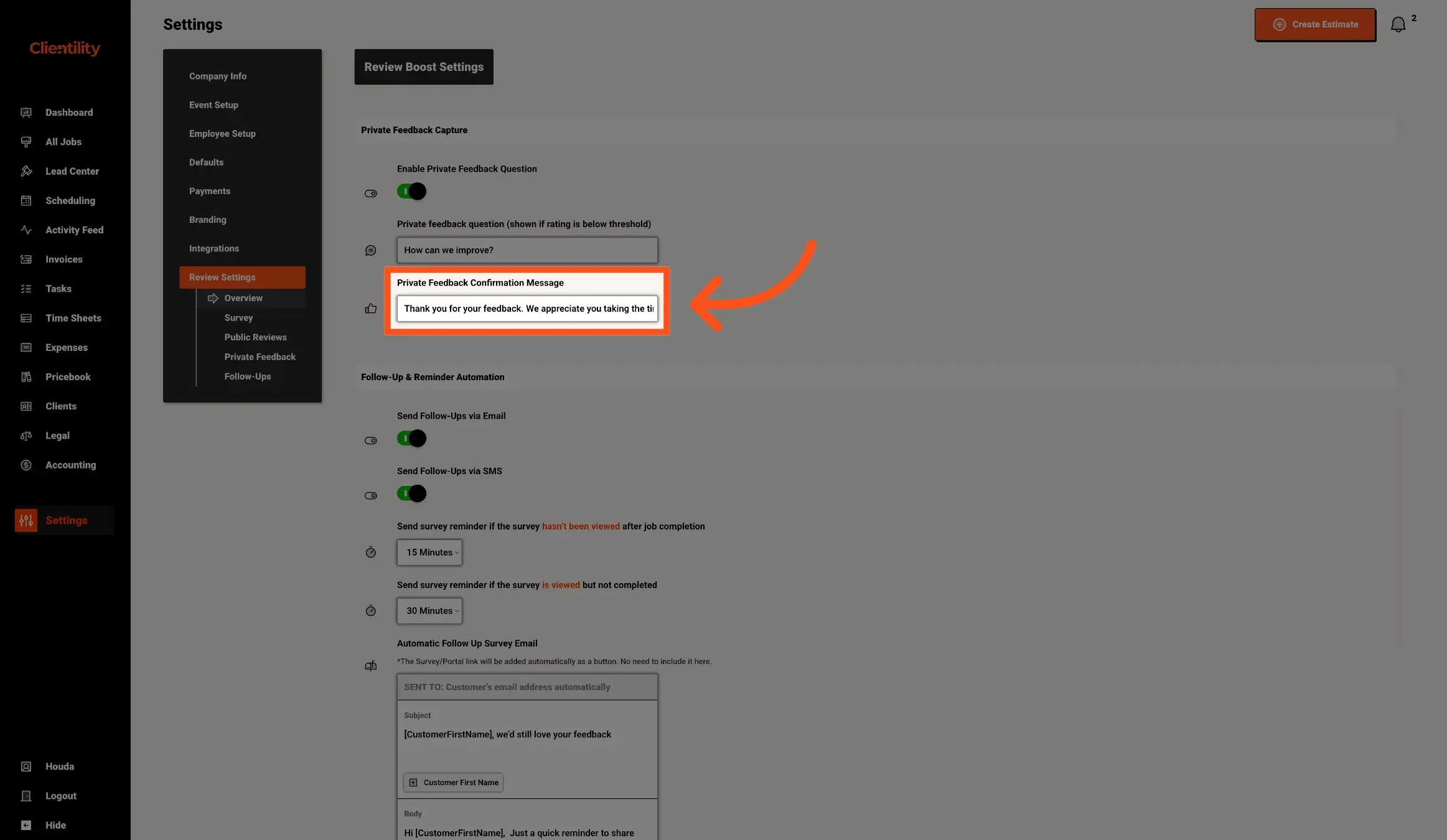
Edit the Private Feedback Confirmation Message customers will see after they submit private feedback.
This message confirms that their feedback was received. Use it to thank the customer for taking the time to respond and let them know their feedback helps your business improve.
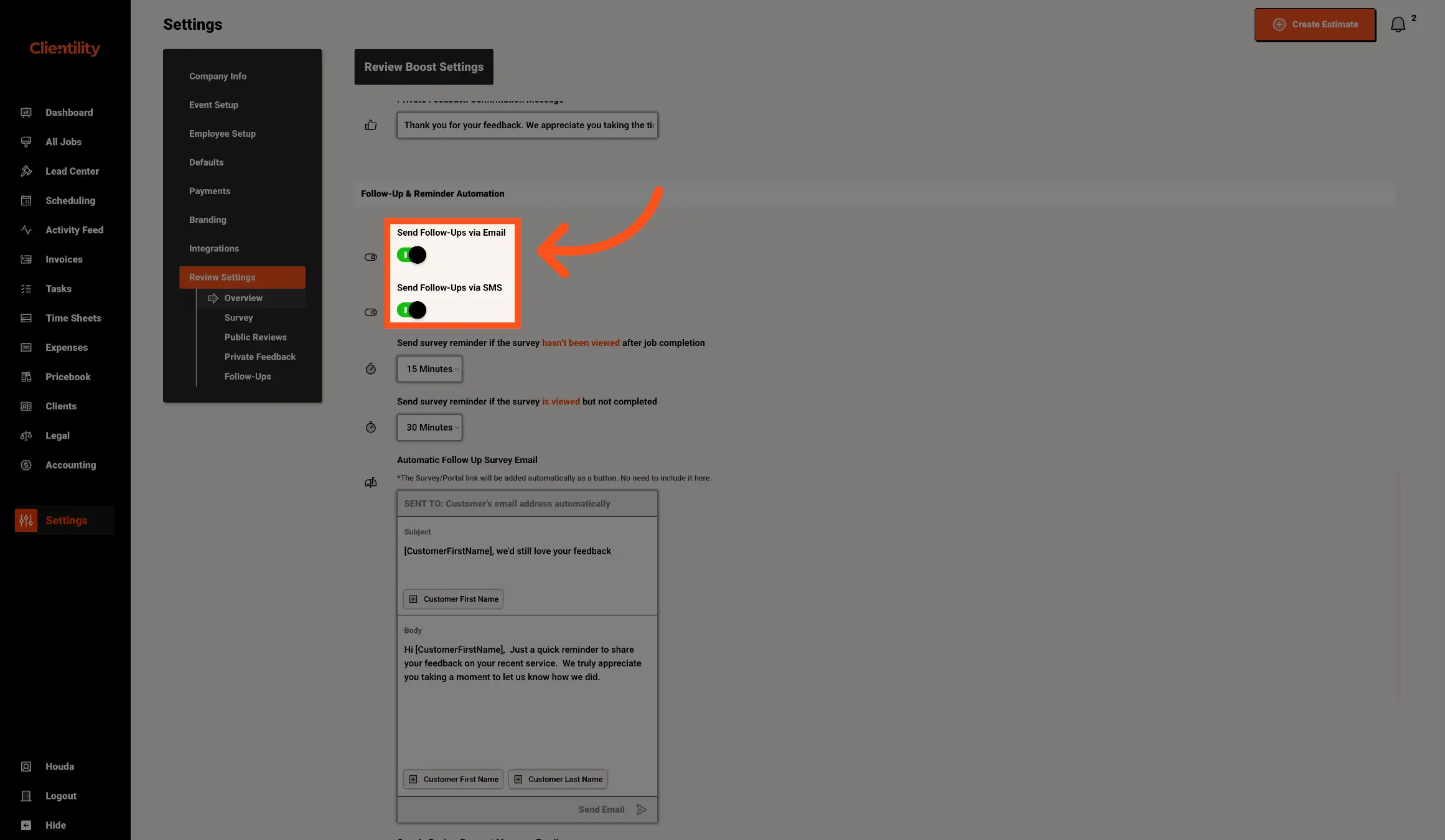
Turn on Send Follow-Ups via Email and/or Send Follow-Ups via SMS based on how you want customers to receive survey reminders.
These settings control the delivery method for Review Boost follow-ups if follow-ups are enabled. You can send reminders by email, SMS, or both, depending on how you prefer to contact your customers.
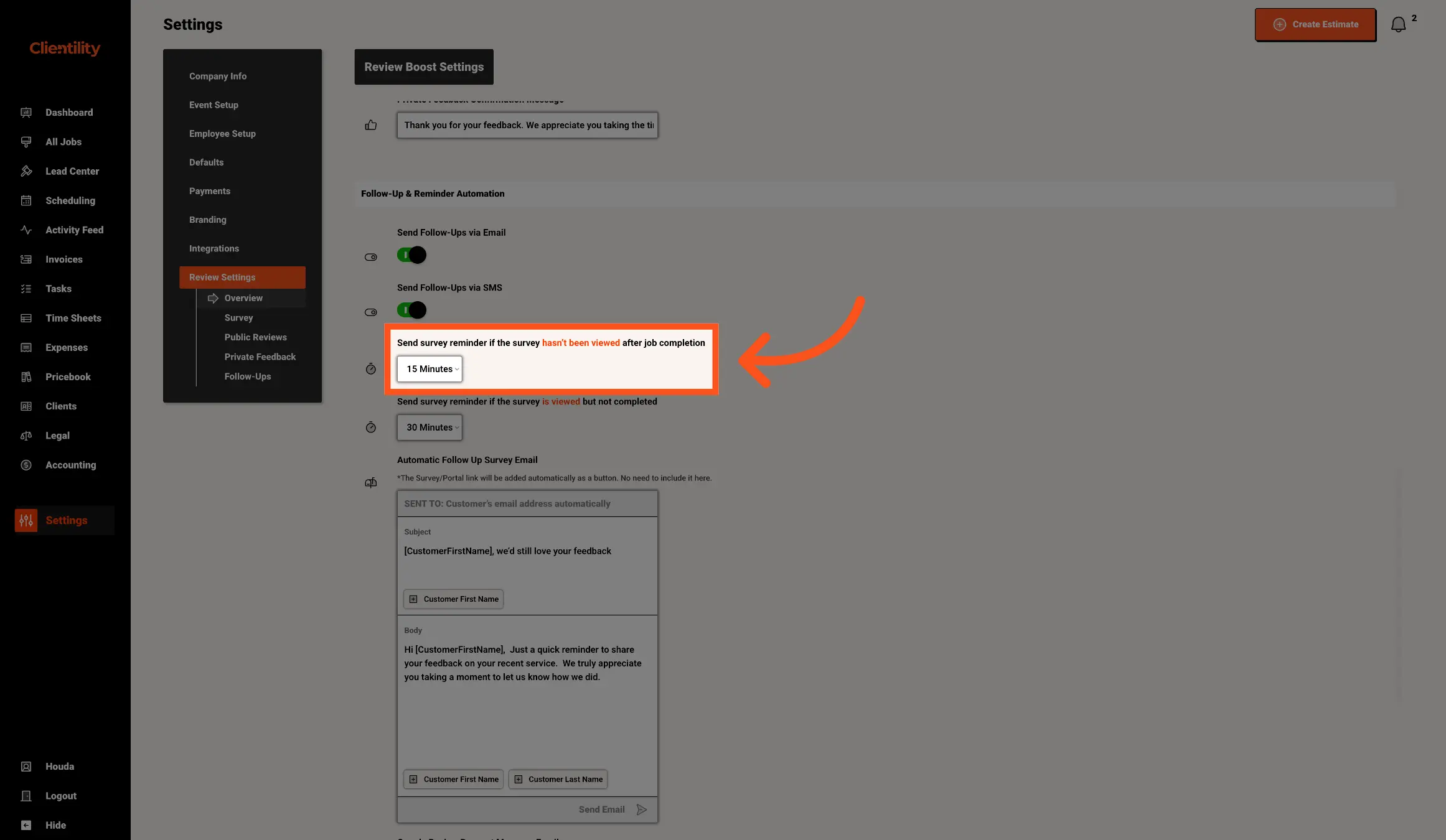
Choose when Clientility should send a survey reminder if the customer has not viewed the survey after the job is completed.
This helps remind customers who have not opened the survey yet. For example, you can set Clientility to send a reminder 15 minutes after job completion if the survey has not been viewed.
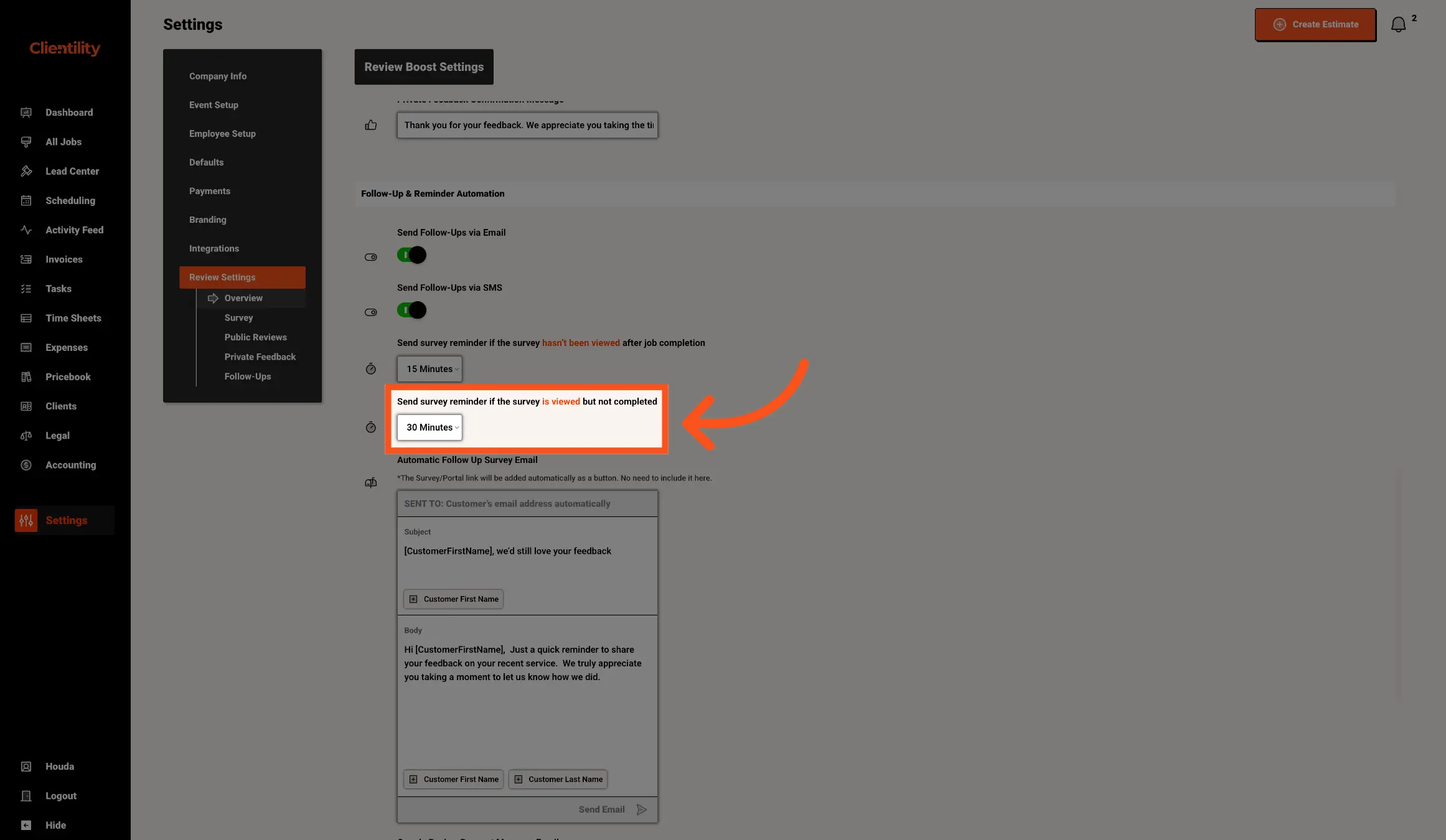
Choose when Clientility should send a survey reminder if the customer has viewed the survey but has not completed it.
This helps follow up with customers who opened the survey but did not finish submitting their feedback. For example, you can set Clientility to send a reminder 30 minutes after the survey was viewed if it still has not been completed.
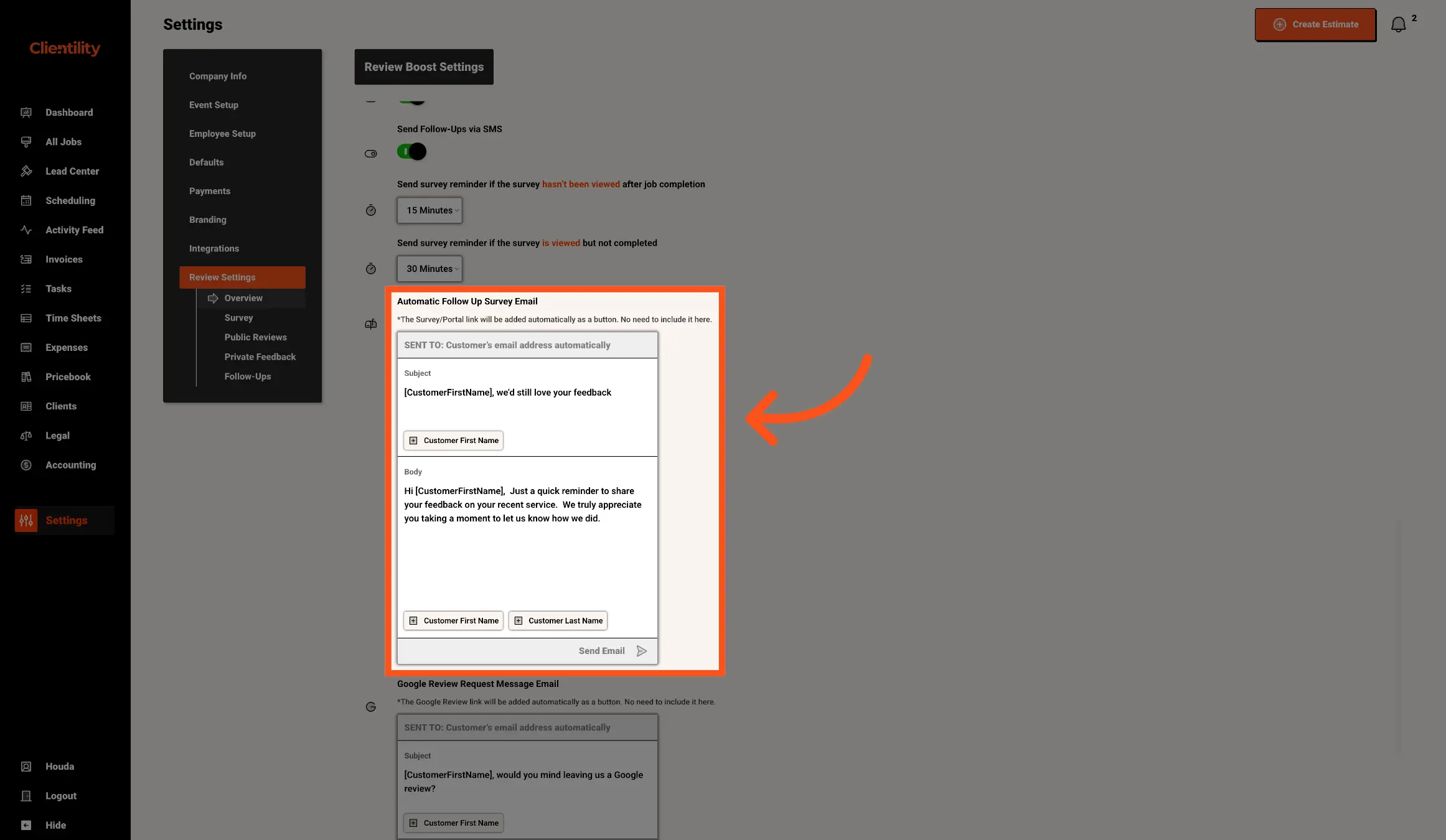
Edit the Automatic Follow Up Survey Email that customers receive when they need to be reminded to complete the survey.
This email is sent to the customer automatically based on the reminder times you set above. You can customize the subject and body, and use dynamic fields like the customer’s first name to personalize the message. The survey portal link is added automatically as a button, so you do not need to add the link manually.
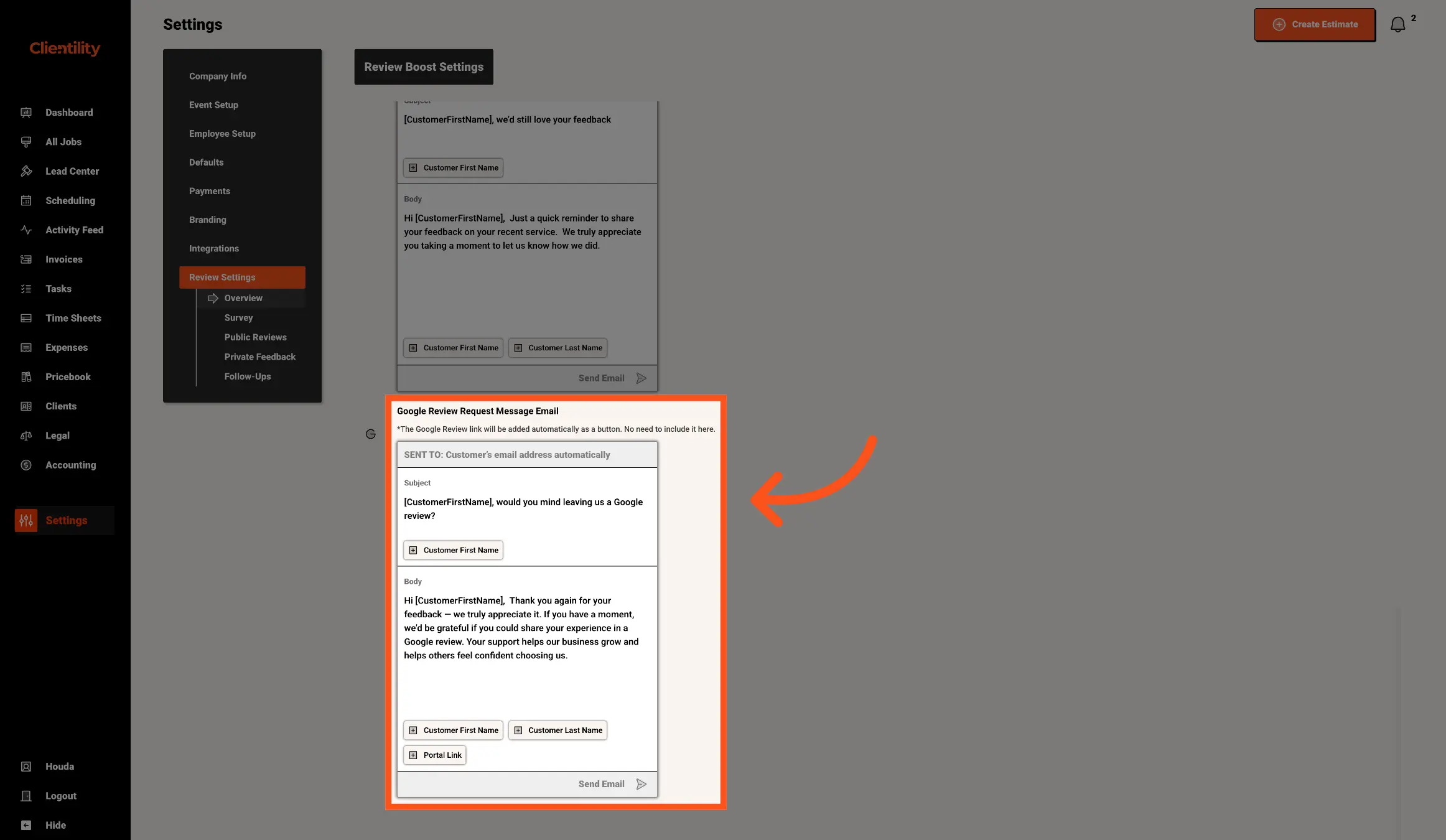
Edit the Google Review Request Message Email that customers receive when their survey rating meets your public review threshold.
This email is used to ask happy customers to leave a Google review. You can customize the subject and body, and use dynamic fields like the customer’s first name to personalize the message. The Google review link is added automatically as a button, so you do not need to include the link manually.