Menu
This guide explains how to create tasks in Clientility. Tasks help organize the work and internal responsibilities your business needs to complete. You can create general tasks, job related tasks, or event related tasks, and assign them to team members to help everyone stay organized and on track.

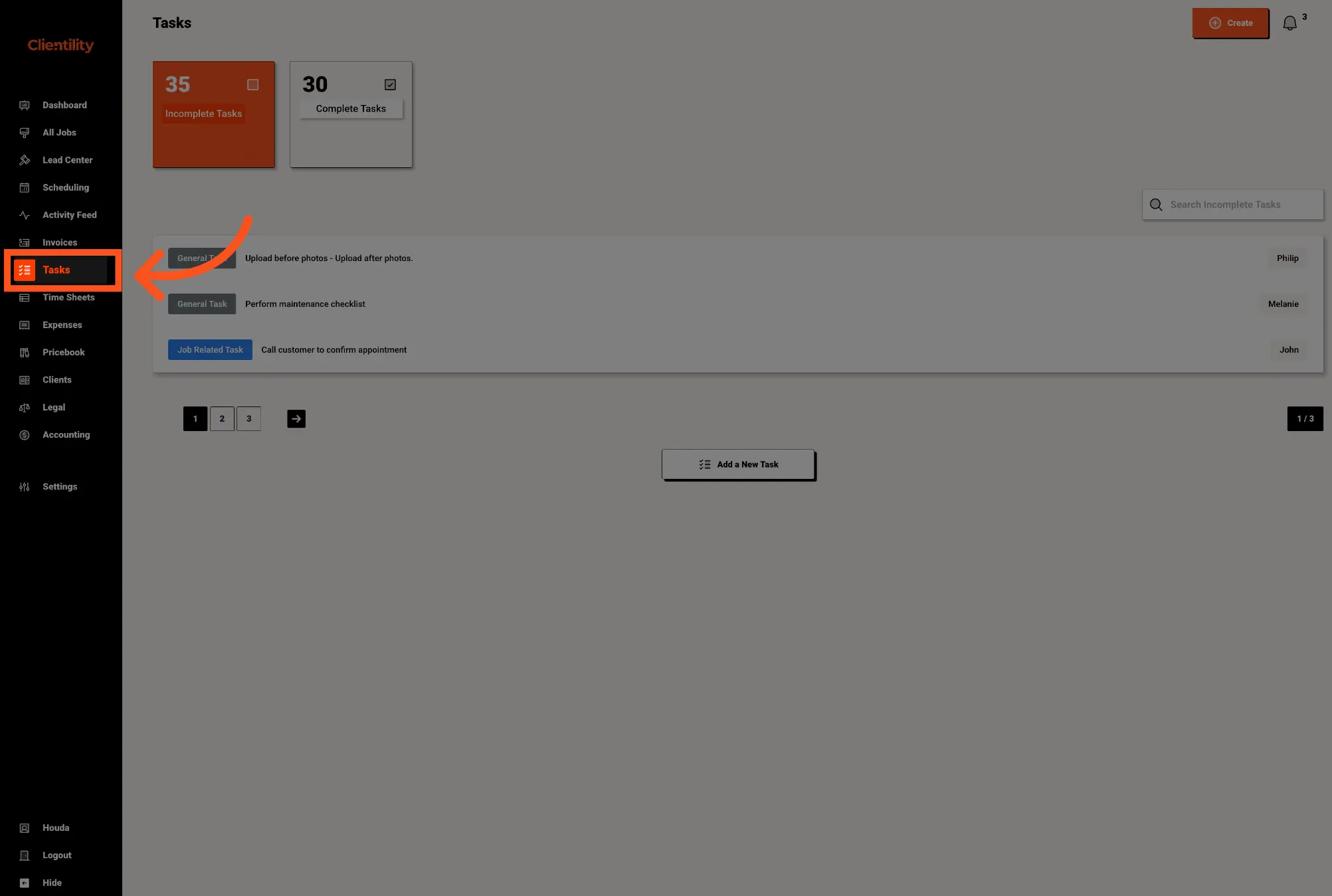
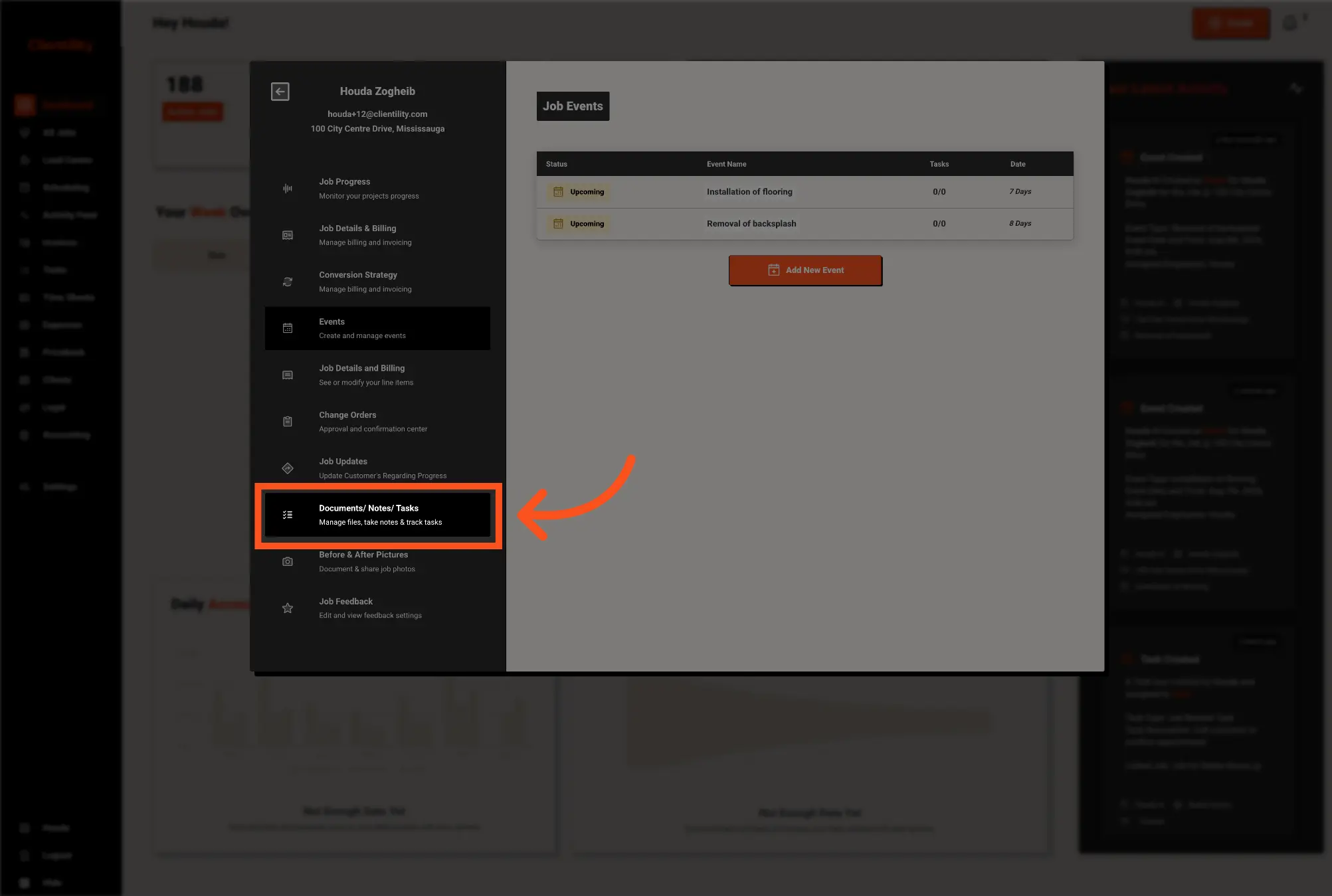
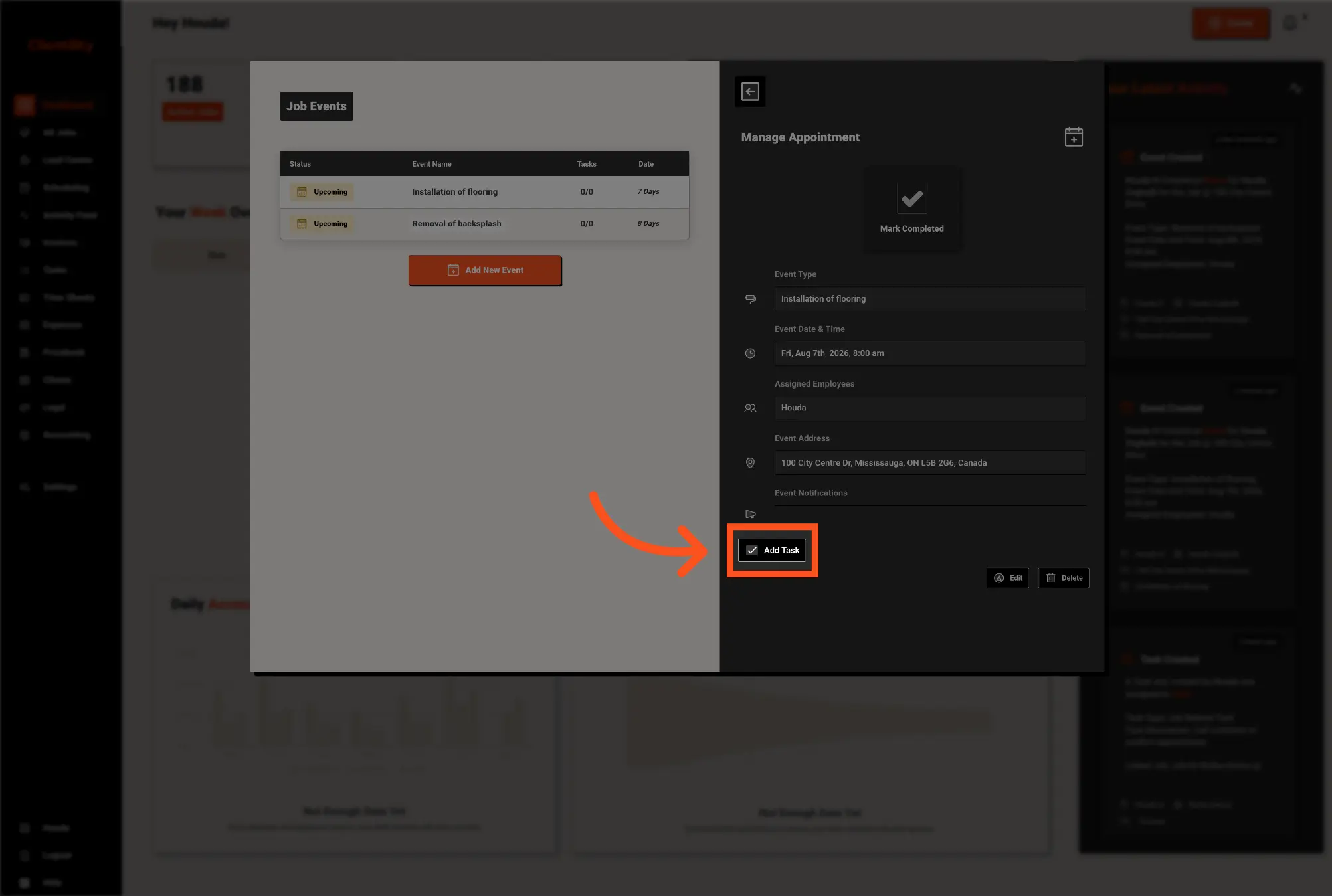
In this guide, we will create tasks from the Tasks section in the main sidebar.
Click Tasks from the main sidebar.
This opens your task list, where you can view, manage, and create tasks.
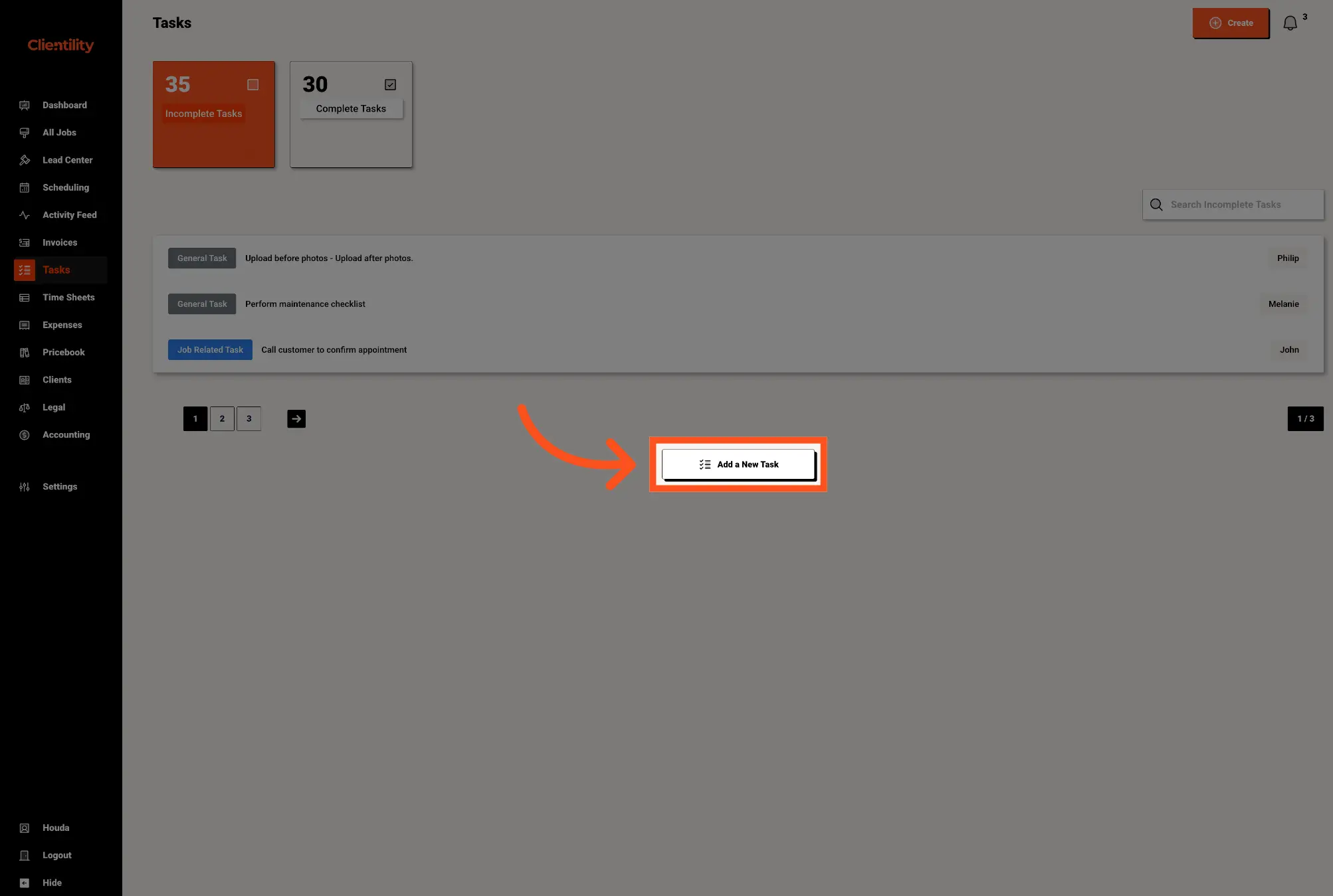
Click Add New Task to create a new task.
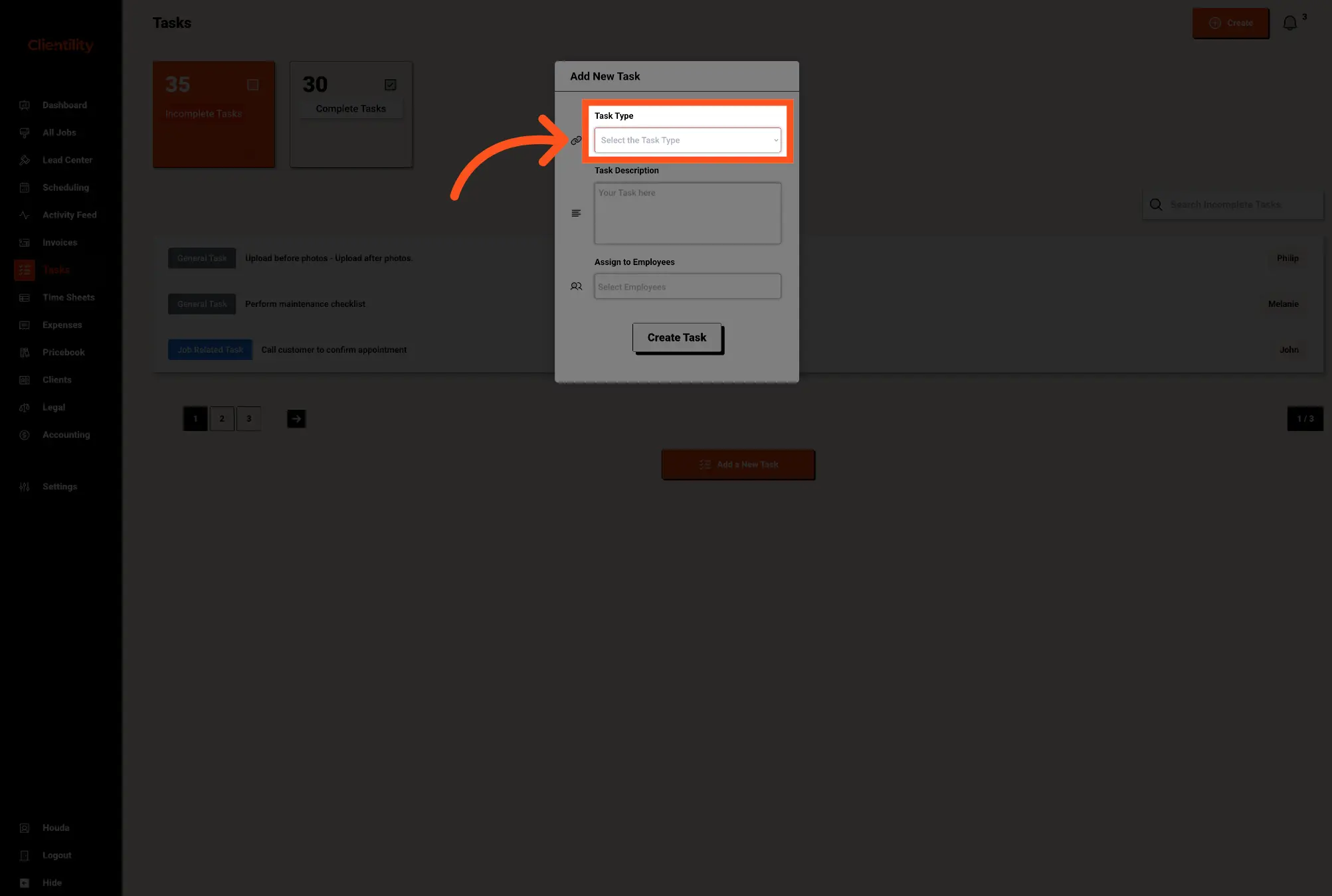
You will see three task types:
General Task is used for tasks that are not connected to a specific job or event. This can be used for office tasks, team reminders, or anything else that needs to be completed.
Job Related Task is used for tasks connected to a specific job. This is helpful when the task needs to be completed as part of a customer’s project.
Event Related Task is used for tasks connected to a specific event. This is helpful when the task is related to that event.
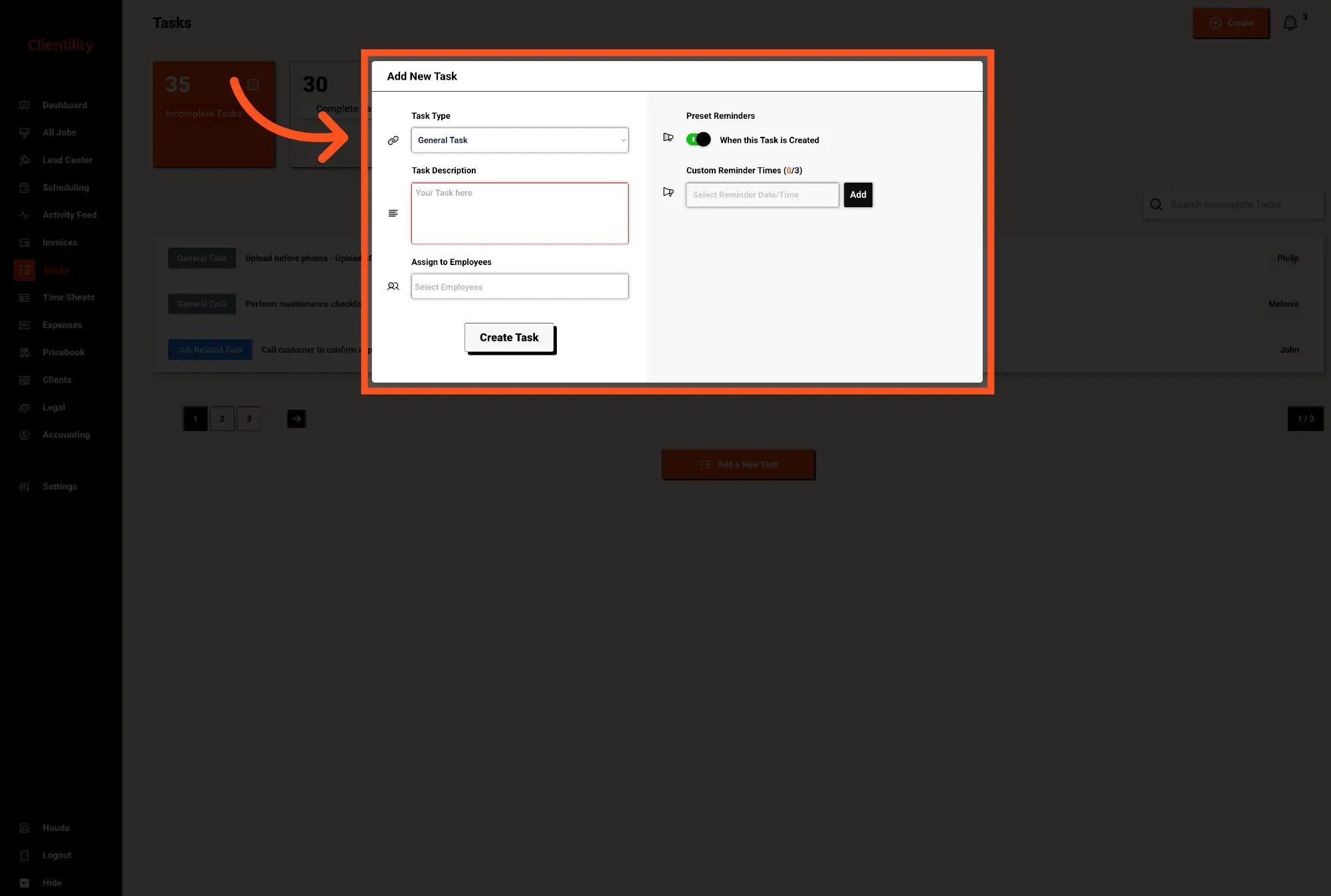
A General Task is used for work that is not connected to a specific job or event. This can include office tasks, team reminders, material orders, or anything else that needs to be completed.
Click Add a New Task, then select General Task.
Enter a description explaining what needs to be completed.
For example: Call supplier to confirm material delivery date.
Select an employee if someone on your team is responsible for completing the task.
Select one of the preset reminders using the quick toggle options. You can also create a custom reminder if you want the reminder to be sent at a specific date and time.
Once everything looks good, click Create Task.
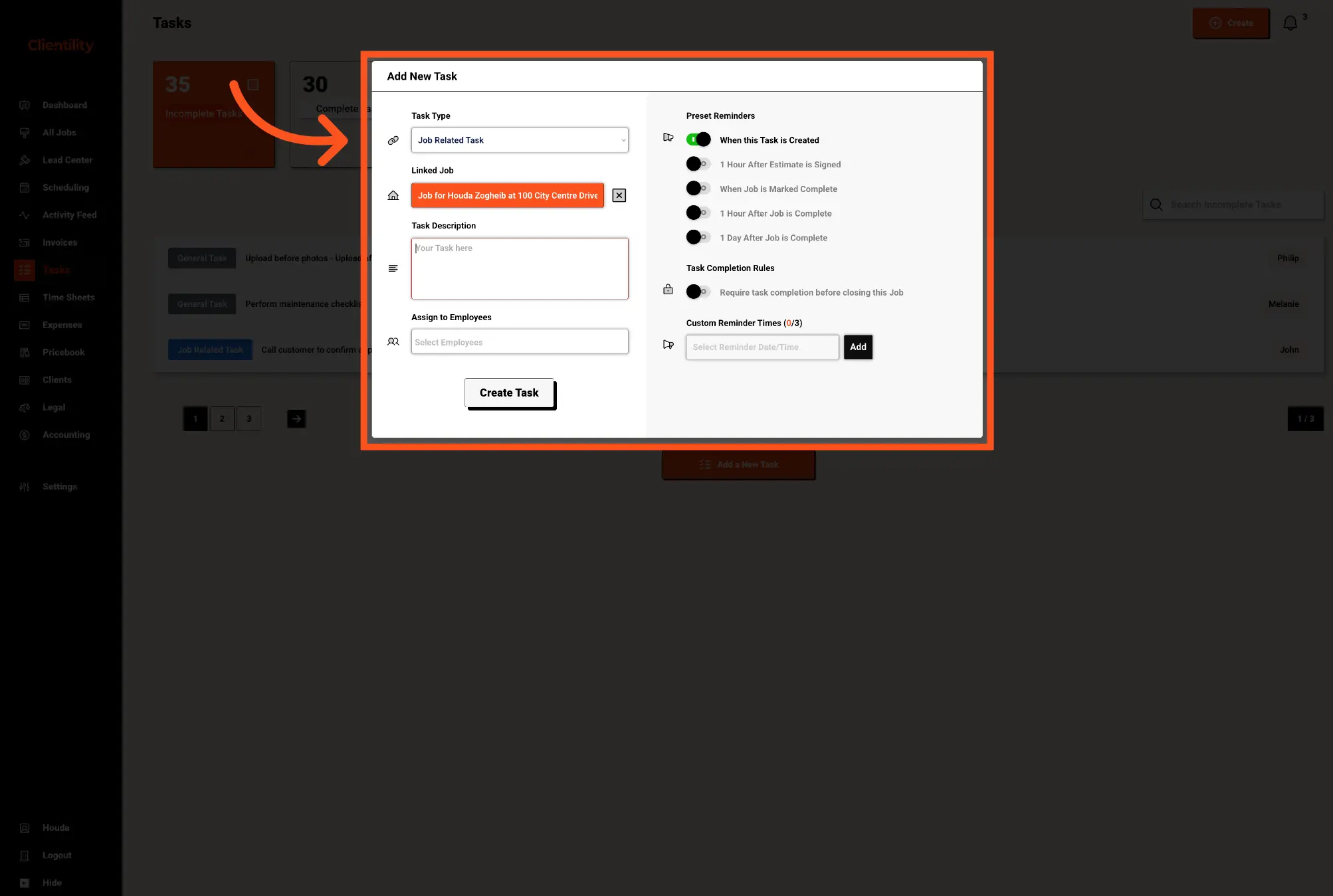
A Job Related Task is used for work that is connected to a specific job. This is helpful when the task needs to be completed as part of a customer’s project.
Click Add a New Task, then select Job Related Task.
Choose the job that the task is related to. This connects the task to the correct customer and job.
Enter a description explaining what needs to be completed.
For example: Order the kitchen backsplash tiles before installation.
Select an employee if someone on your team is responsible for completing the task.
Select one of the preset reminders using the quick toggle options. You can also create a custom reminder if you want the reminder to be sent at a specific date and time.
Once everything looks good, click Create Task.
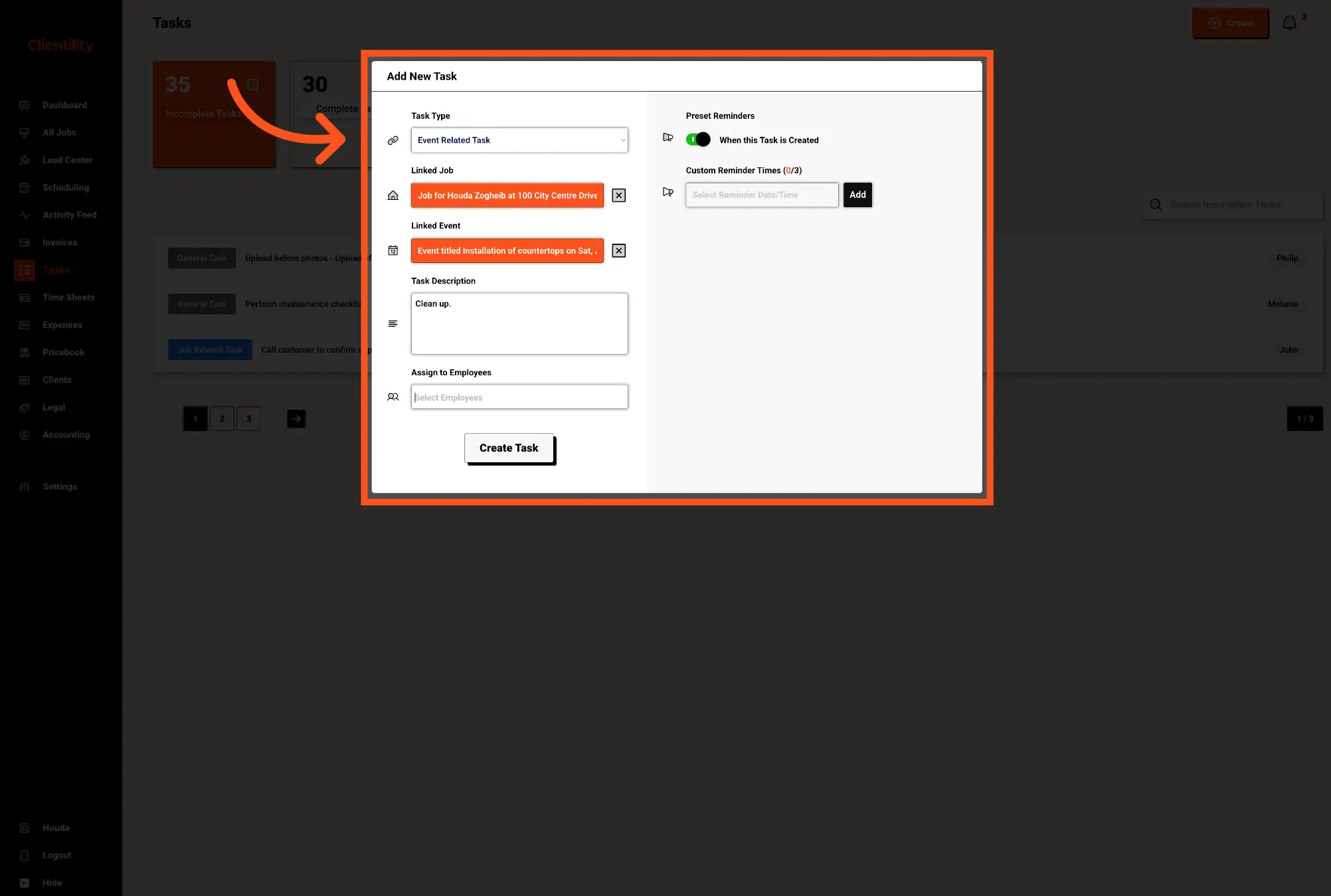
An Event Related Task is used for work that is connected to a specific event. This is helpful when the task needs to be completed as part of that event.
Click Add a New Task, then select Event Related Task.
Choose the job that contains the event you want to create the task for. Selecting the job filters the event list, so you can then choose the correct event for the task.
Choose the event you want to create the task for. The task will be connected to the selected event.
Enter a description explaining what needs to be completed.
For example: Bring paint samples to the painting appointment.
Select an employee if someone on your team is responsible for completing the task.
Select one of the preset reminders using the quick toggle options. You can also create a custom reminder if you want the reminder to be sent at a specific date and time.
Once everything looks good, click Create Task.