Menu
This guide explains how to change the default Profit Calculation settings in Clientility. These settings help estimate your profitability while building estimates by factoring in labour hours, number of employees, hourly rates, and miscellaneous costs.

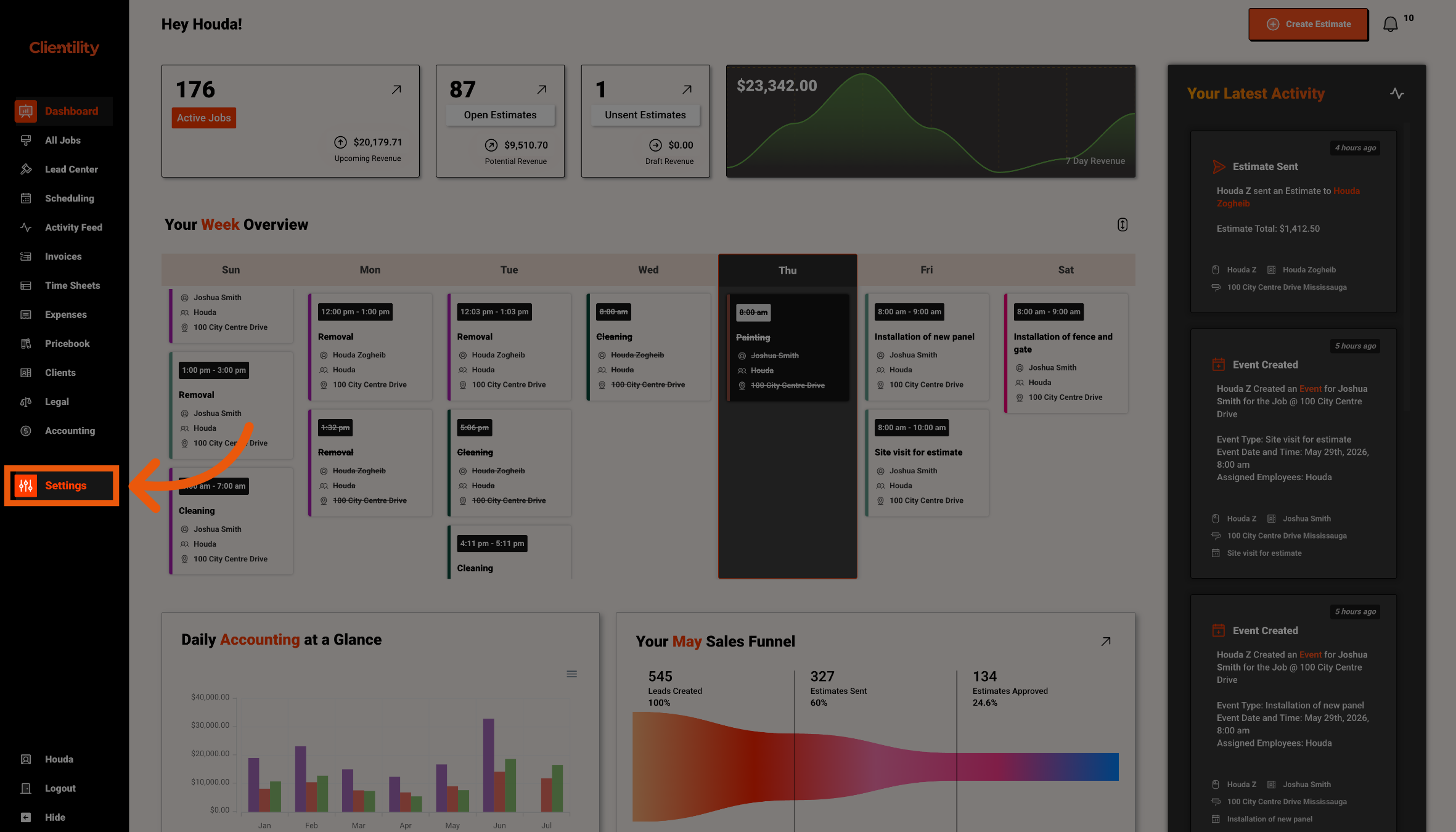
Click Settings from the main sidebar to access your account configuration options.
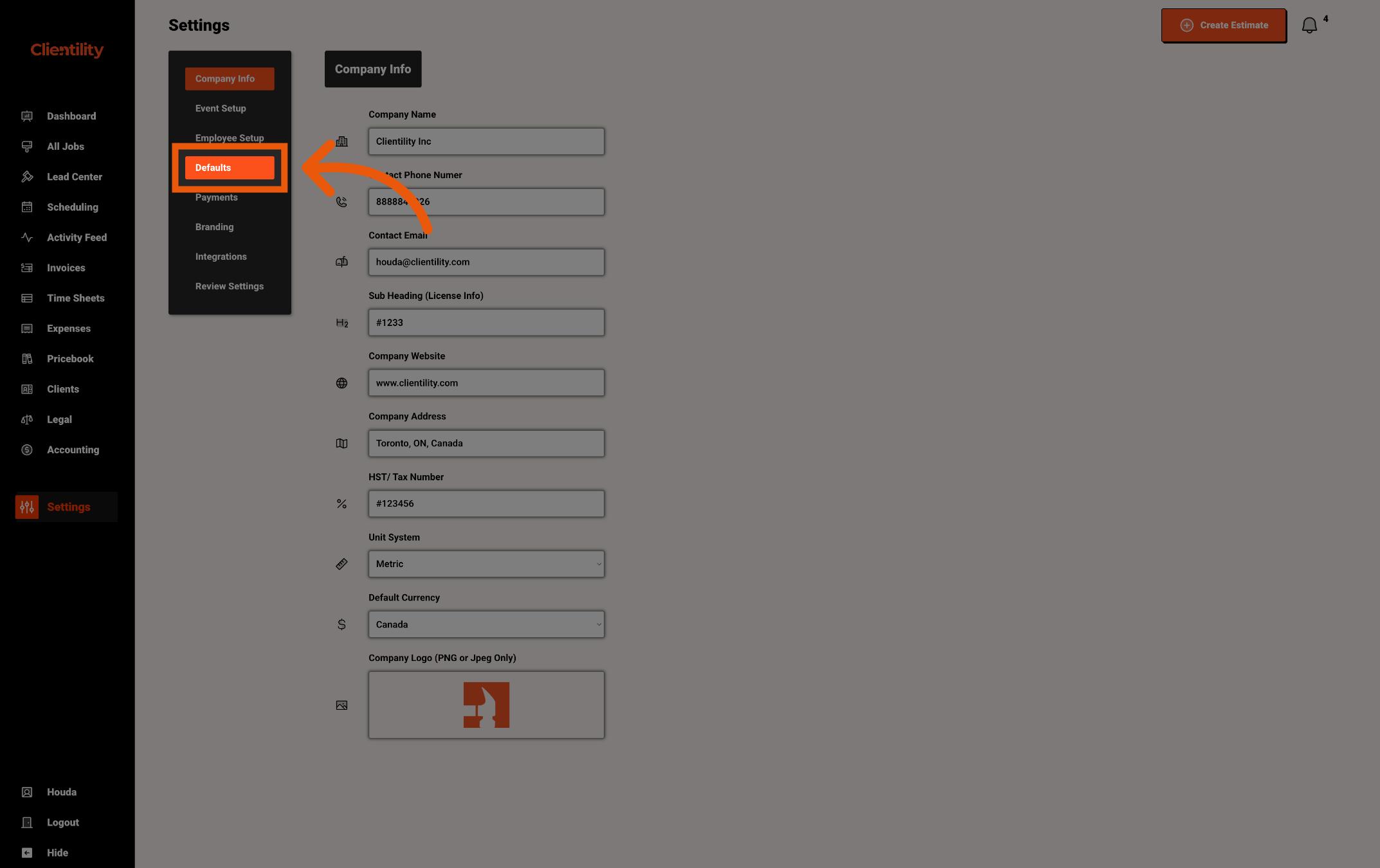
Click Defaults to access your default configuration settings.
This section is where you can manage preset values used across your account.
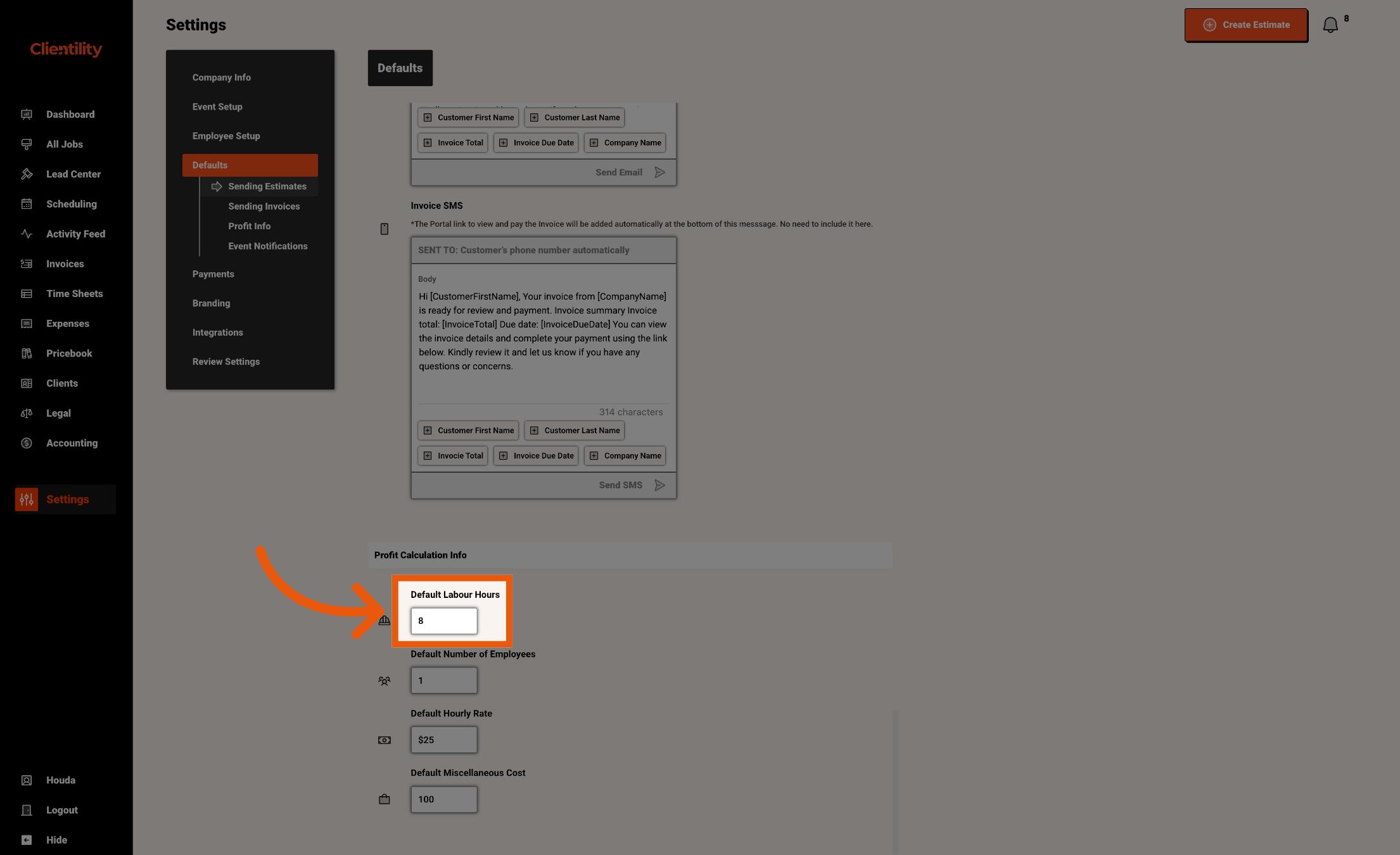
Scroll to the Profit Calculation Info section. This is where you can set the default values used to help calculate estimated profit when creating an estimate.
Enter the default number of labour hours you want to use when calculating estimate profitability.
For example, entering 8 means Clientility will use 8 labour hours by default when helping calculate profit.
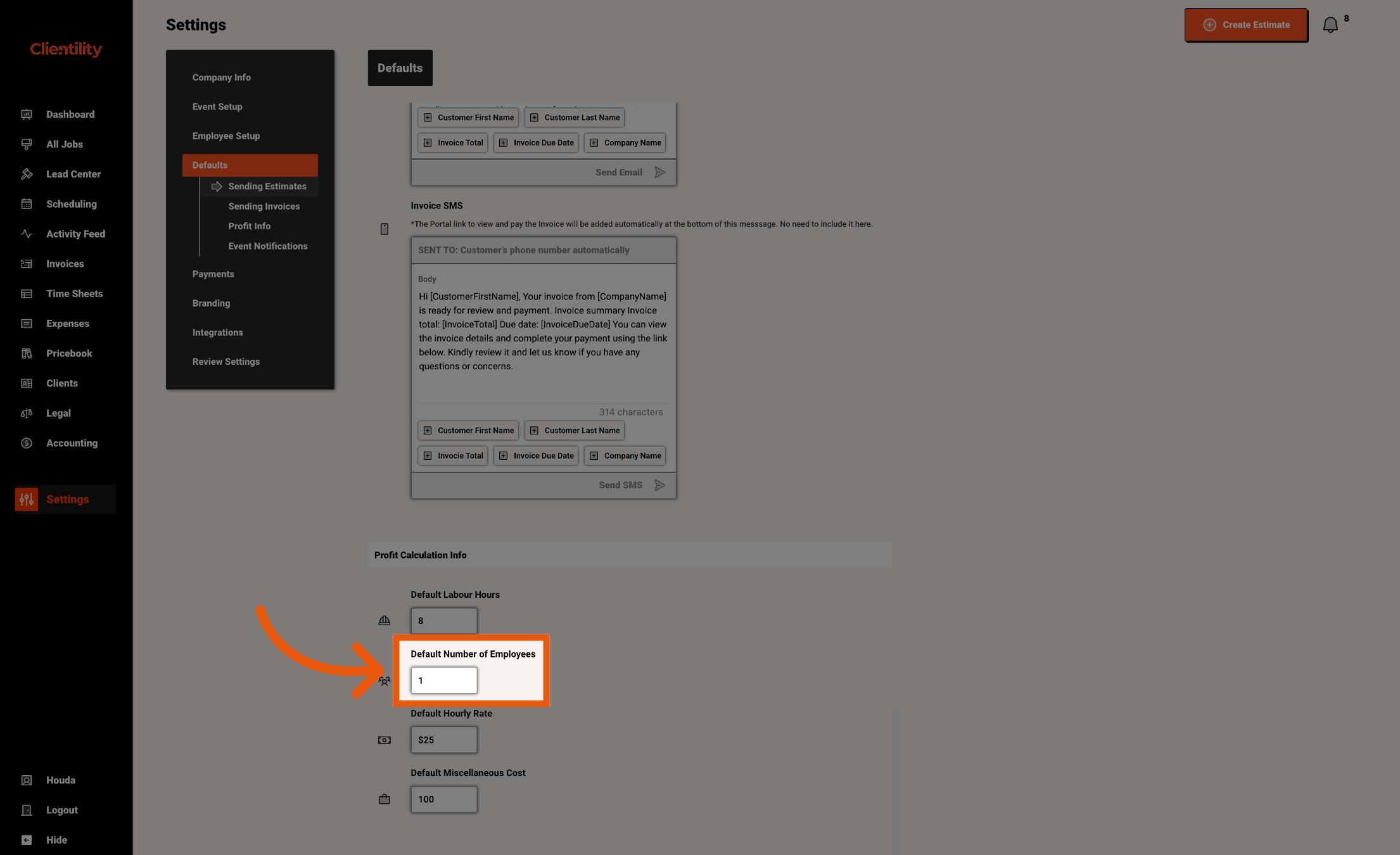
Enter the default number of employees usually needed for a job.
This helps calculate labour costs more accurately when estimating profitability.
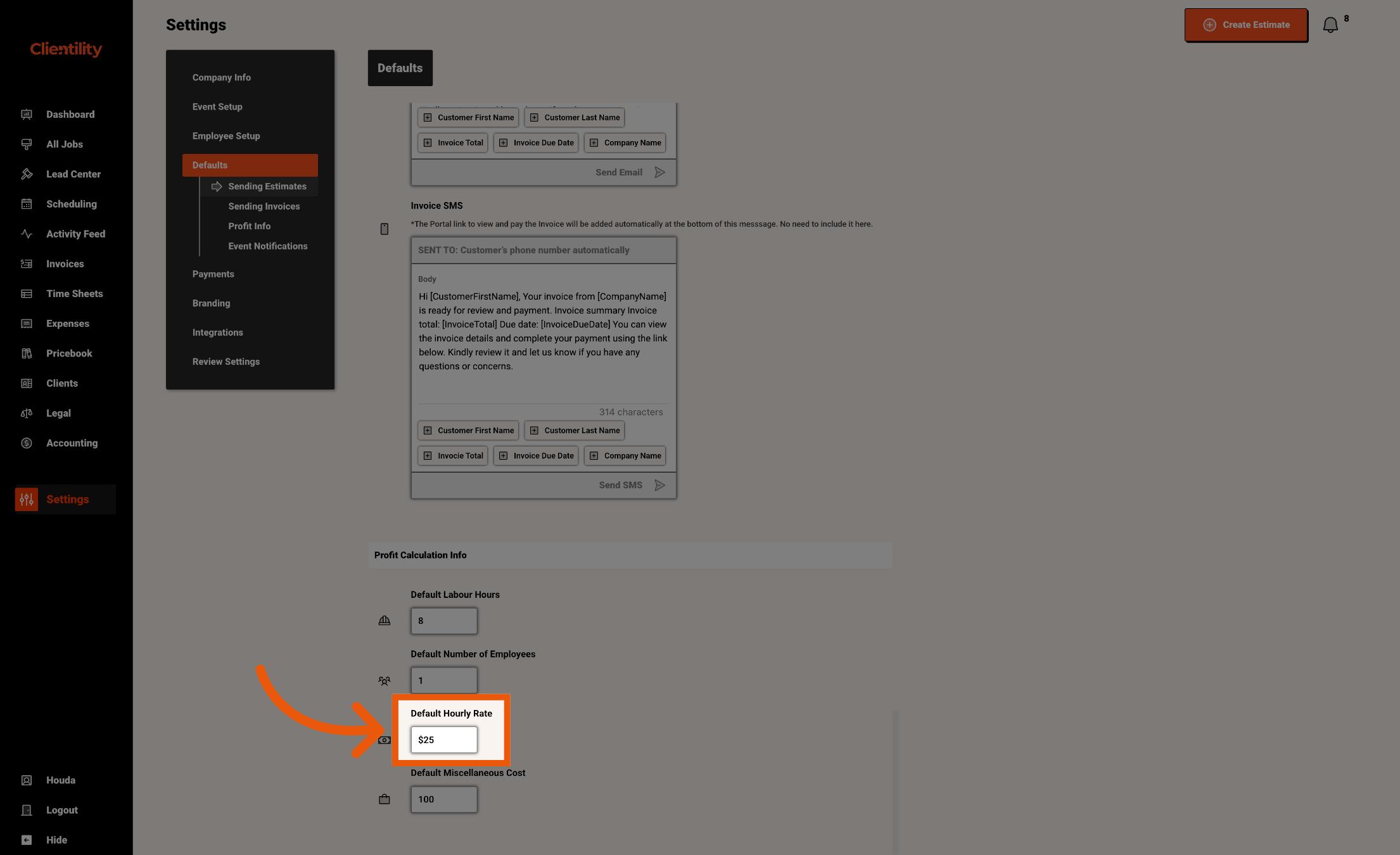
Enter the default hourly rate used for labour cost calculations.
For example, entering 25 means Clientility will calculate labour costs using $25 per hour by default.
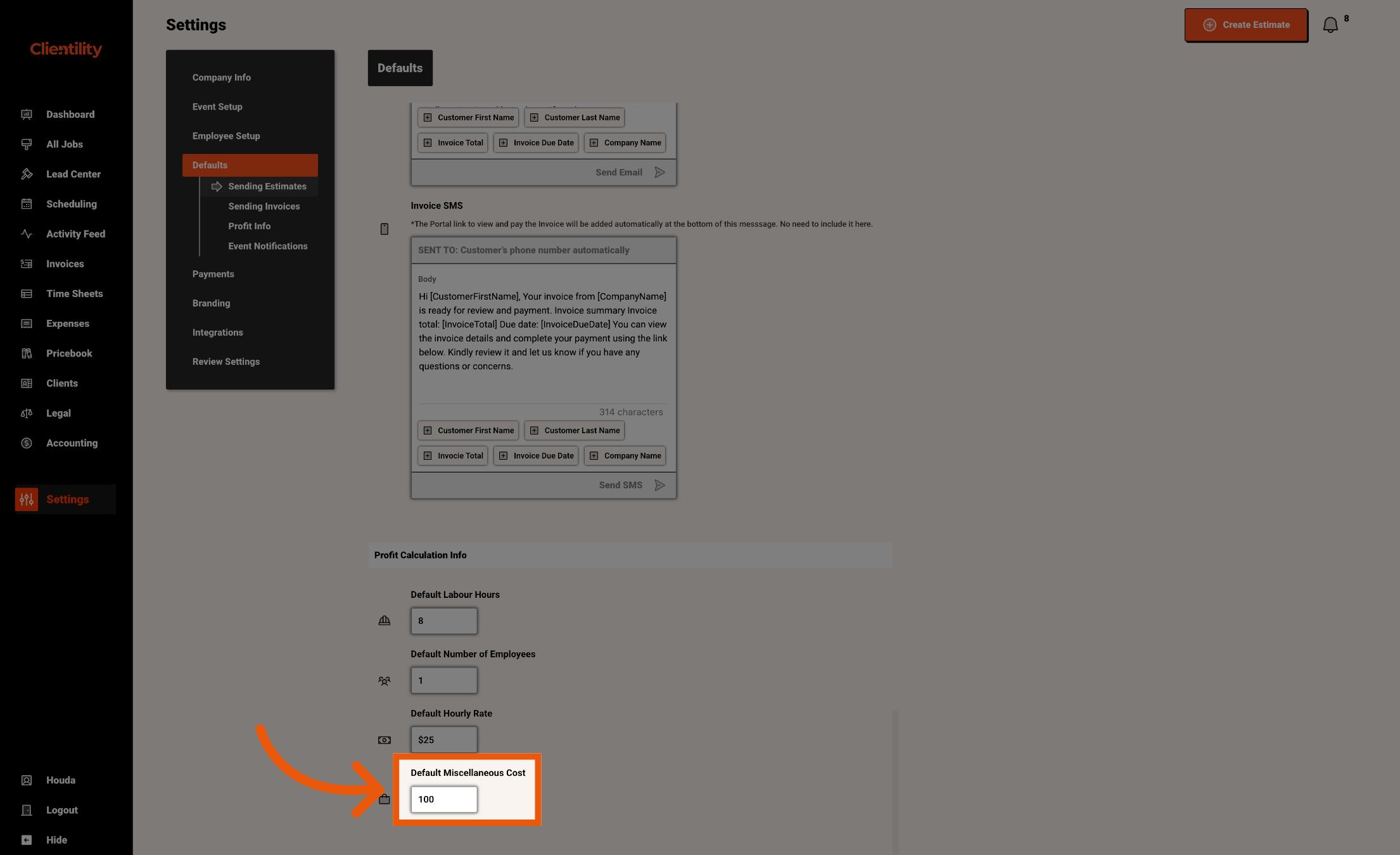
Enter a default miscellaneous cost you want included in profitability calculations.
This can be used for extra job costs that are not tied to a specific line item, such as small supplies, travel, or other general expenses.
Note
These default profit calculation settings will apply to all new estimates being built moving forward.
You can still customize the labour hours, number of employees, hourly rate, and miscellaneous costs on a per-estimate basis when needed.