Menu
This guide explains how to change the default Invoice Due Date setting in Clientility. This setting controls how many days customers have to pay an invoice after it is sent.

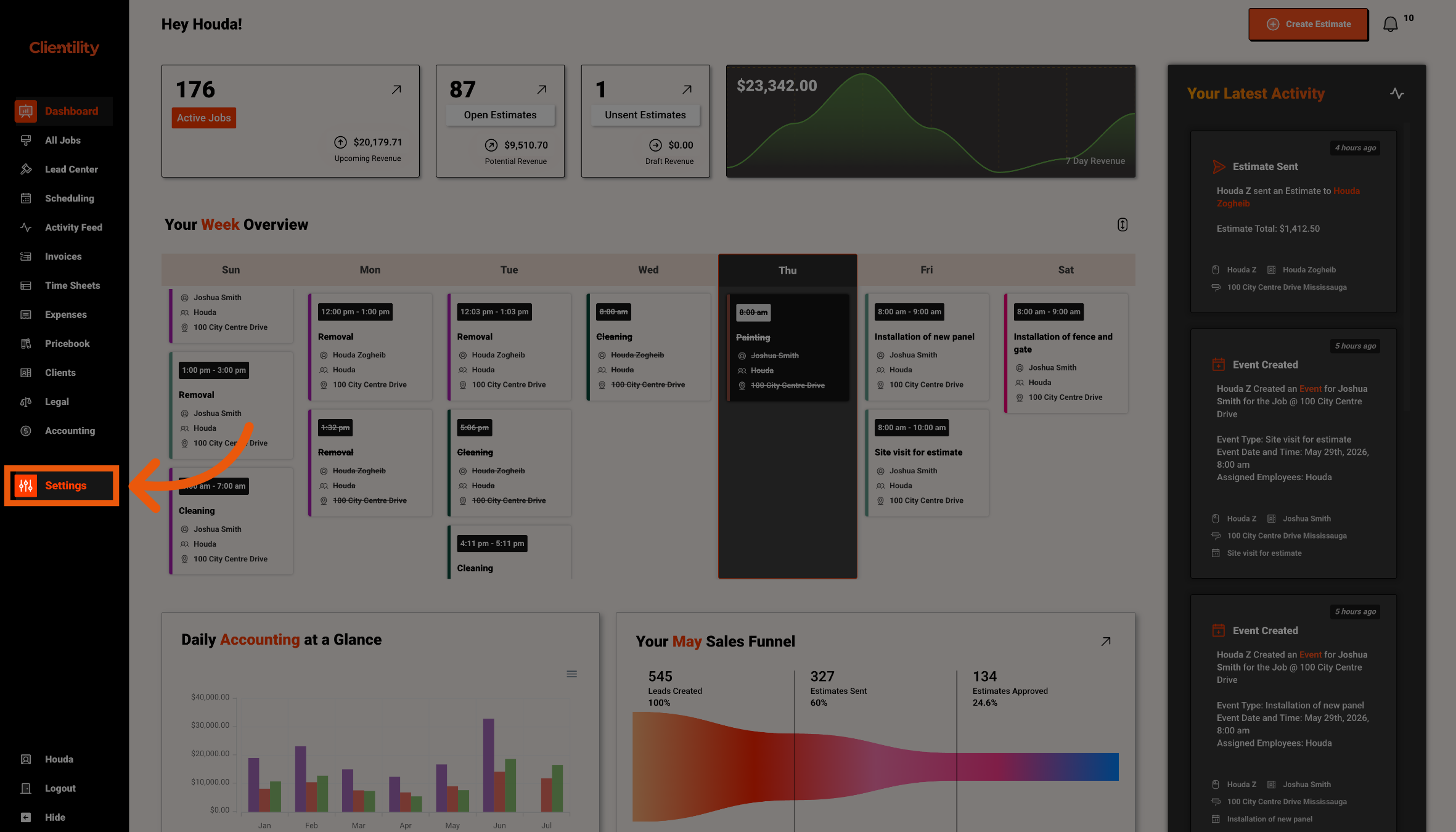
Click Settings from the main sidebar to access your account configuration options.
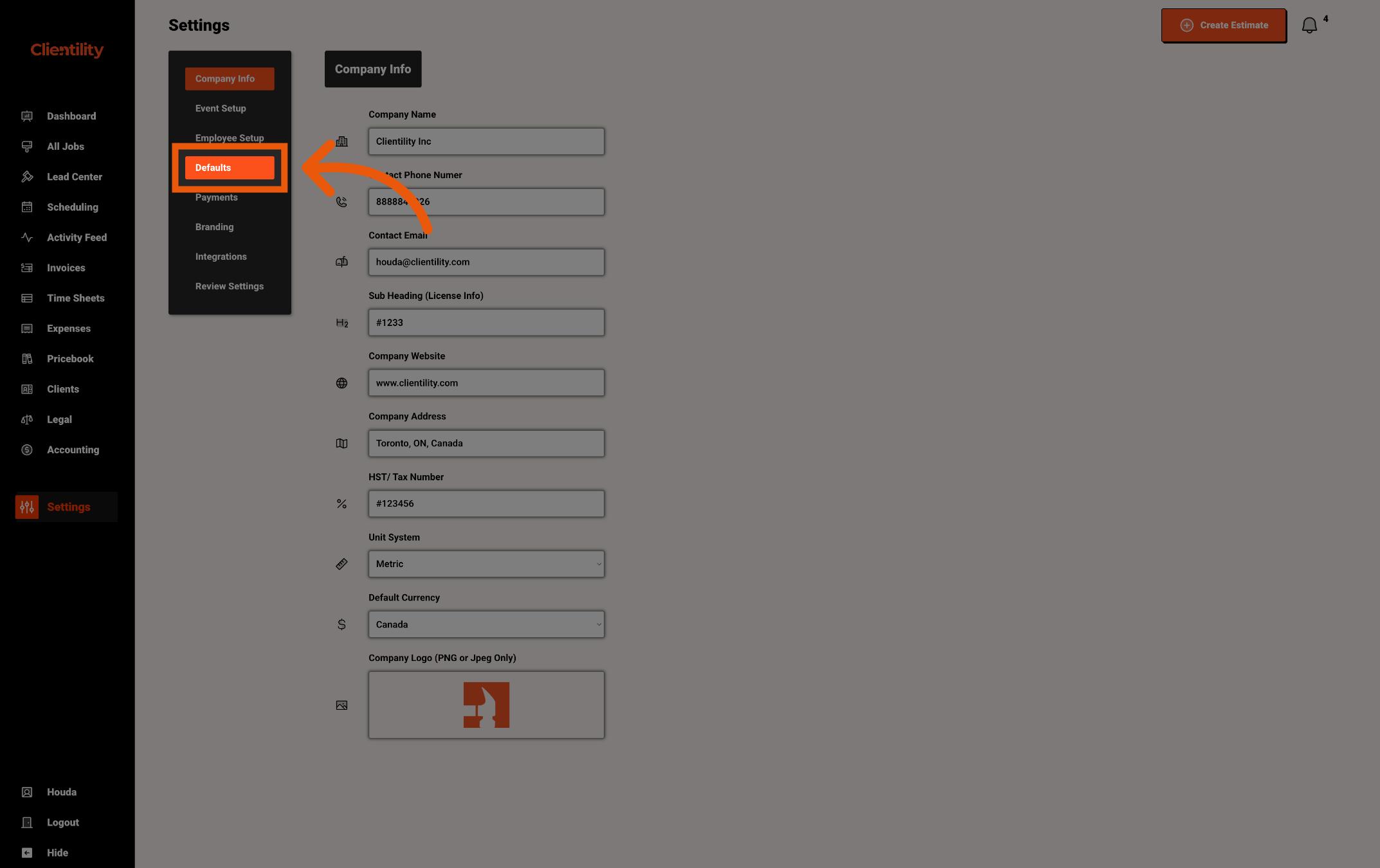
Click Defaults to access your default configuration settings.
This section is where you can manage preset values used across your account.
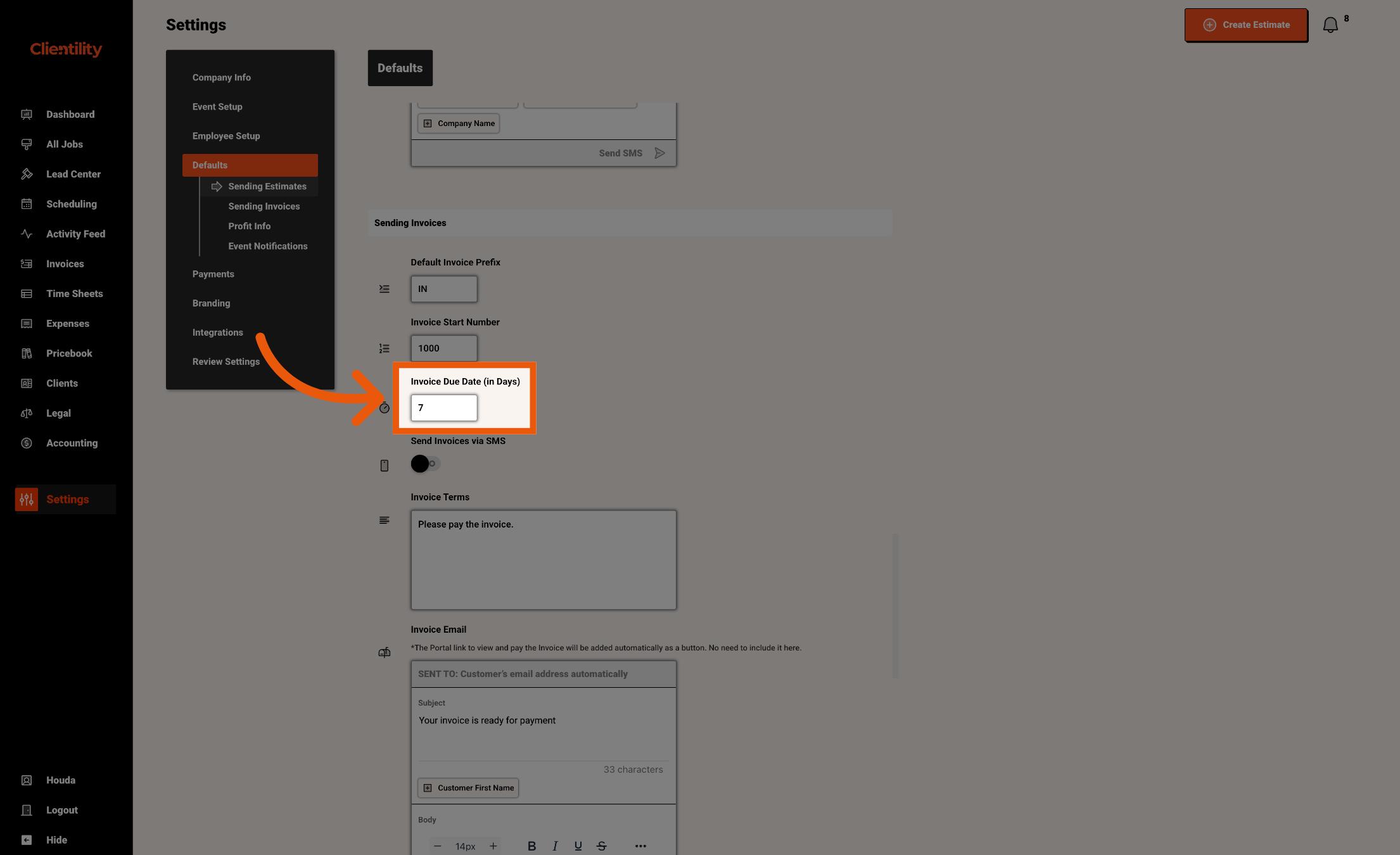
Enter the number of days customers should have to pay an invoice by default.
For example, entering 10 means the invoice will be due within 10 days from the day it is sent.
This helps set a clear payment deadline for customers each time an invoice is sent.