Menu
This guide explains how to customize the default Invoice Email and Invoice SMS in Clientility. These messages are used when sending invoices to customers, so you can control the default wording before an invoice is sent.

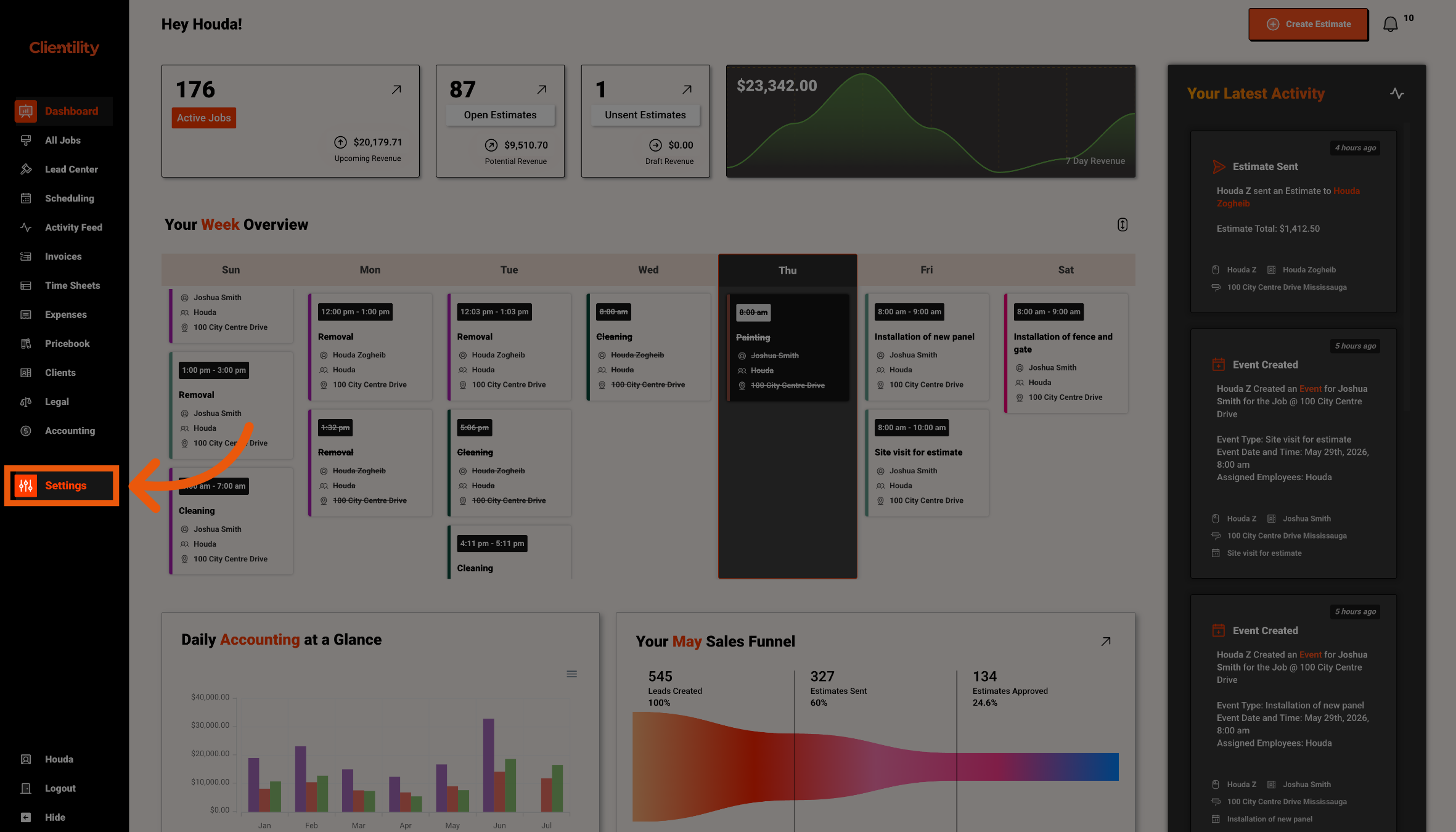
Click Settings from the main sidebar to access your account configuration options.
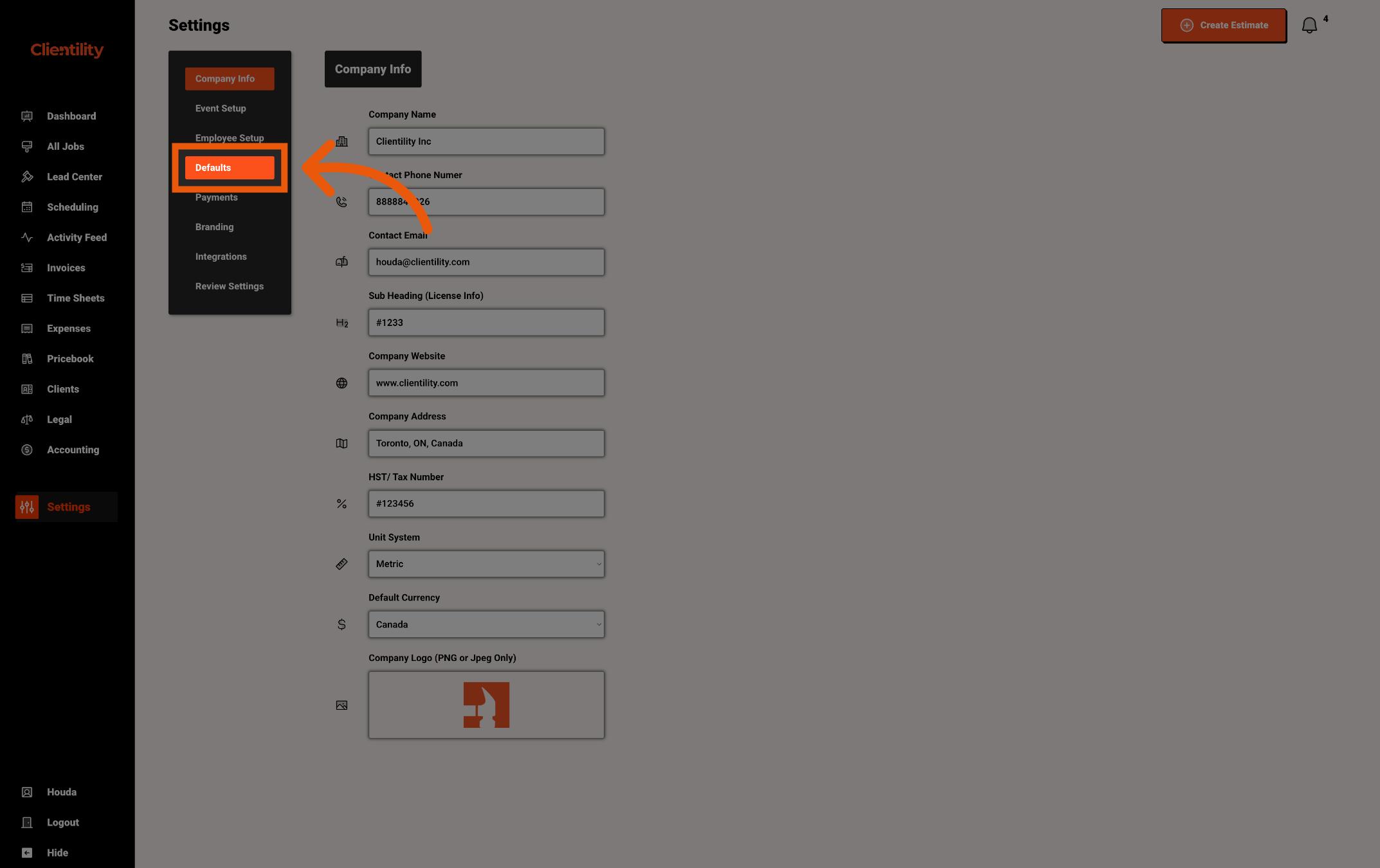
Click Defaults to access your default configuration settings.
This section is where you can manage preset values used across your account.
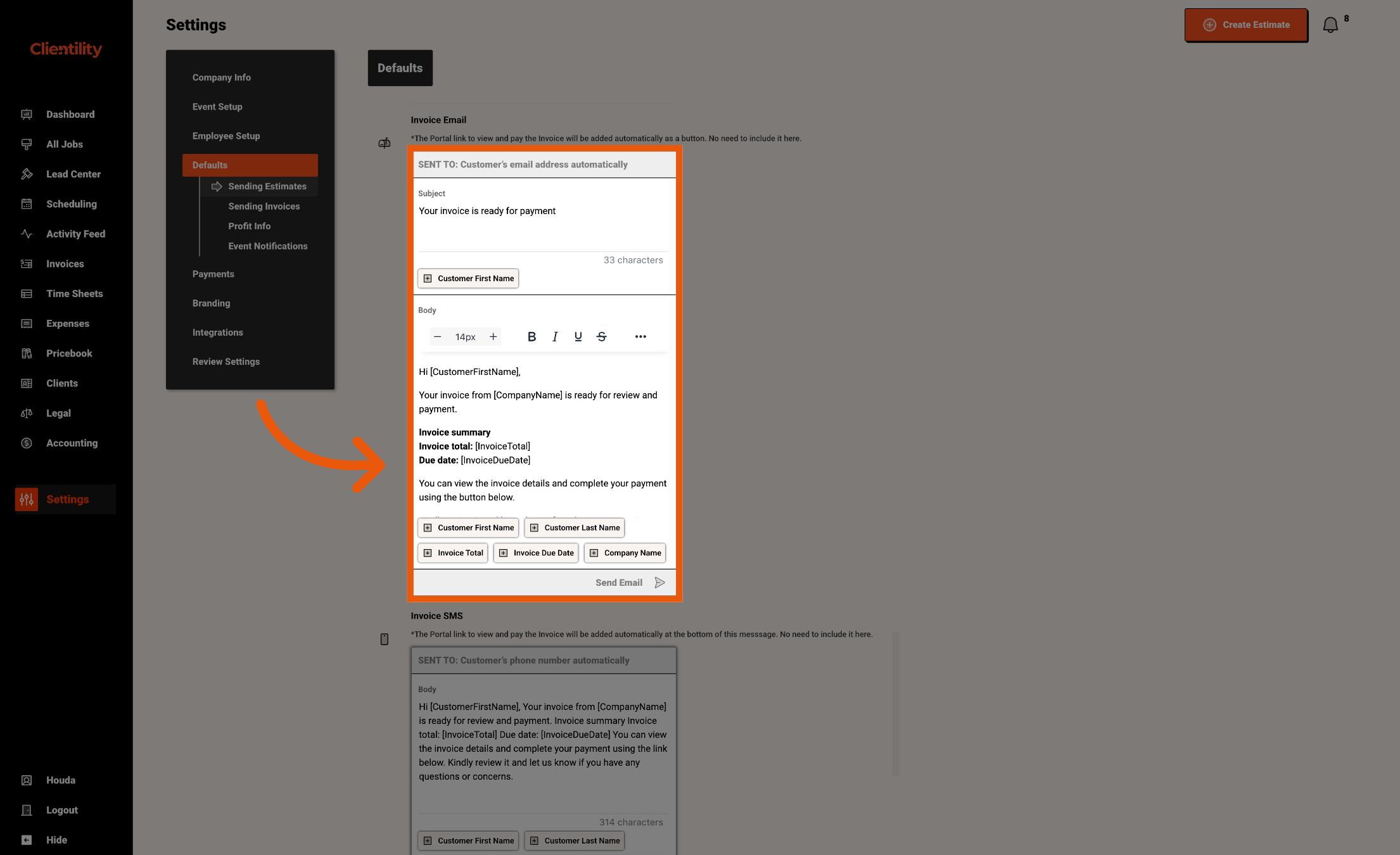
Edit the default Invoice Email message that customers receive when an invoice is sent by email.
You can customize the subject line and body text to match the way your business communicates with customers.
The portal button to view and pay the invoice will be added automatically, so you do not need to include the link in the message.
You can use placeholders like [CustomerFirstName] and [CompanyName] to automatically personalize the message.
[CustomerFirstName] will be replaced with the customer’s first name, and [CompanyName] will be replaced with your company name.
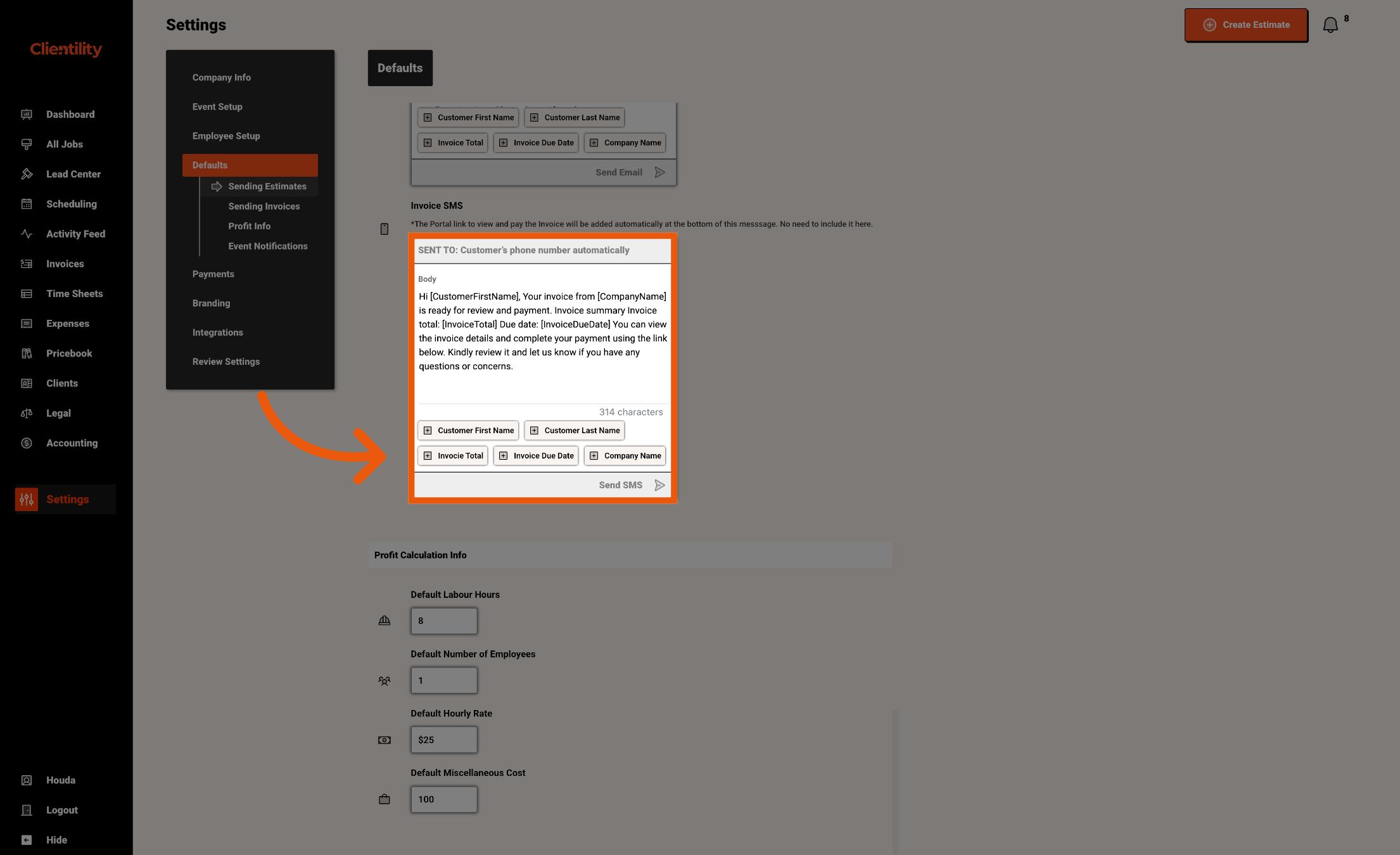
Edit the default Invoice SMS message that customers receive when an invoice is sent by text message.
The portal link to view and pay the invoice will be added automatically, so you do not need to include the link in the message.
You can use placeholders like [CustomerFirstName] and [CompanyName] to automatically personalize the message.
[CustomerFirstName] will be replaced with the customer’s first name, and [CompanyName] will be replaced with your company name.